Alert Email Notification Configuration and Trigger Conditions
By configuring "email notification", when a specified alarm event is triggered, the alarm content can be pushed to the specified recipient by email, making it easier for security administrators to respond and handle in a timely manner. Support alarm types that trigger email notifications The following alarm types support sending email notifications: Sensitive word warning […]
By configuring "email notification", when a specified alarm event is triggered, the alarm content can be pushed to the specified recipient by email, making it easier for security administrators to respond and handle in a timely manner.
Support alarm types that trigger email notifications
The following alarm types support sending email notifications:
- Sensitive word warning in chat
- Leak alert
- Send multiple file alerts in a short period of time
- U disk usage warning
- Hardware change alert
- Software change alerts
- Computer name change alert
- IP/MAC change alarm
- Endpoint offline alarm
Prerequisites for email alerts to take effect
To ensure that email alerts can be sent normally, the following conditions must be met:
1. The email type is within the supported range- Alibaba Cloud Mailbox
- Alibaba Cloud Enterprise Email
- Tencent corporate email
and the
correct email password/authorization codehas been filled in
4. The receiving address (recipient's email address) has been configuredRecommendation: Some mailboxes require the use of "SMTP authorization code" instead of login password. If the sending still fails after configuration, you can first check whether SMTP/endpoint agent authorization is enabled on the mailbox side.
How to configure the email to receive alerts
1. Configure email parameters
- Enter Start -> System Settings -> Notification Settings -> Email Configuration
- Click Parameter Settings
- Fill in the email configuration parameters as required on the page and click OK to save
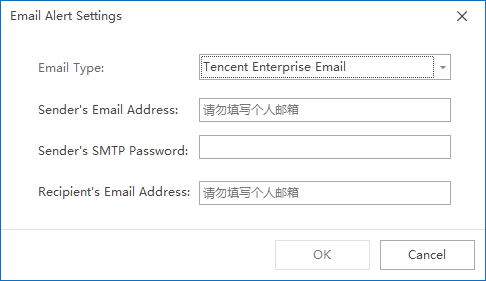 2. Enable email alert notification policy
- Enter Start -> System Settings -> Notification Settings -> Alarm Notification Items
- Click Parameter Settings
- Select the activation method as needed:
-
- Send email notifications for all alarms
- or Only send an email notification when "the number of alarms on the day exceeds the threshold" (suitable for noise reduction and centralized summary)
Troubleshooting method for alarm emails not being sent (log)
When the email alarm is not triggered normally or fails to be sent, you can view the
NxRecordServerservice log on the server side to locate it.
Log path:Installation disk:\Ping32\Server\Server\NxRecordServer\Log
Suggested investigation direction:
- Whether there are error messages such as SMTP connection failure, authentication failure, invalid recipient address, etc.
- Whether the sender's email password/authorization code has been changed->
- Whether the mailbox side restricts third-party endpoint agent login or triggers risk control interception
Updated


