How to Add Software to the Software Library
Ping32 provides a wealth of libraries and templates to meet the different needs of enterprises for data security and business process approval. This article mainly introduces the settings of the software library in "Libraries & Templates". There are two ways to open "Libraries & Templatess" in the Ping32 Management Console: Click the "Start" menu, then […]
Ping32 provides a wealth of libraries and templates to meet the different needs of enterprises for data security and business process approval. This article mainly introduces the settings of the software library in "Libraries & Templates".
There are two ways to open "Libraries & Templatess" in the Ping32 Management Console:
- Click the "Start" menu, then click "Libraries & Templatess".
- Click the "More Functions" menu, then click "Libraries & Templatess".
View the software library
1. Enter the
More Functionsmodule in the Management Console.
2. Click
Libraries & Templatess->
Softwareto view the software that already exists in the current software library.
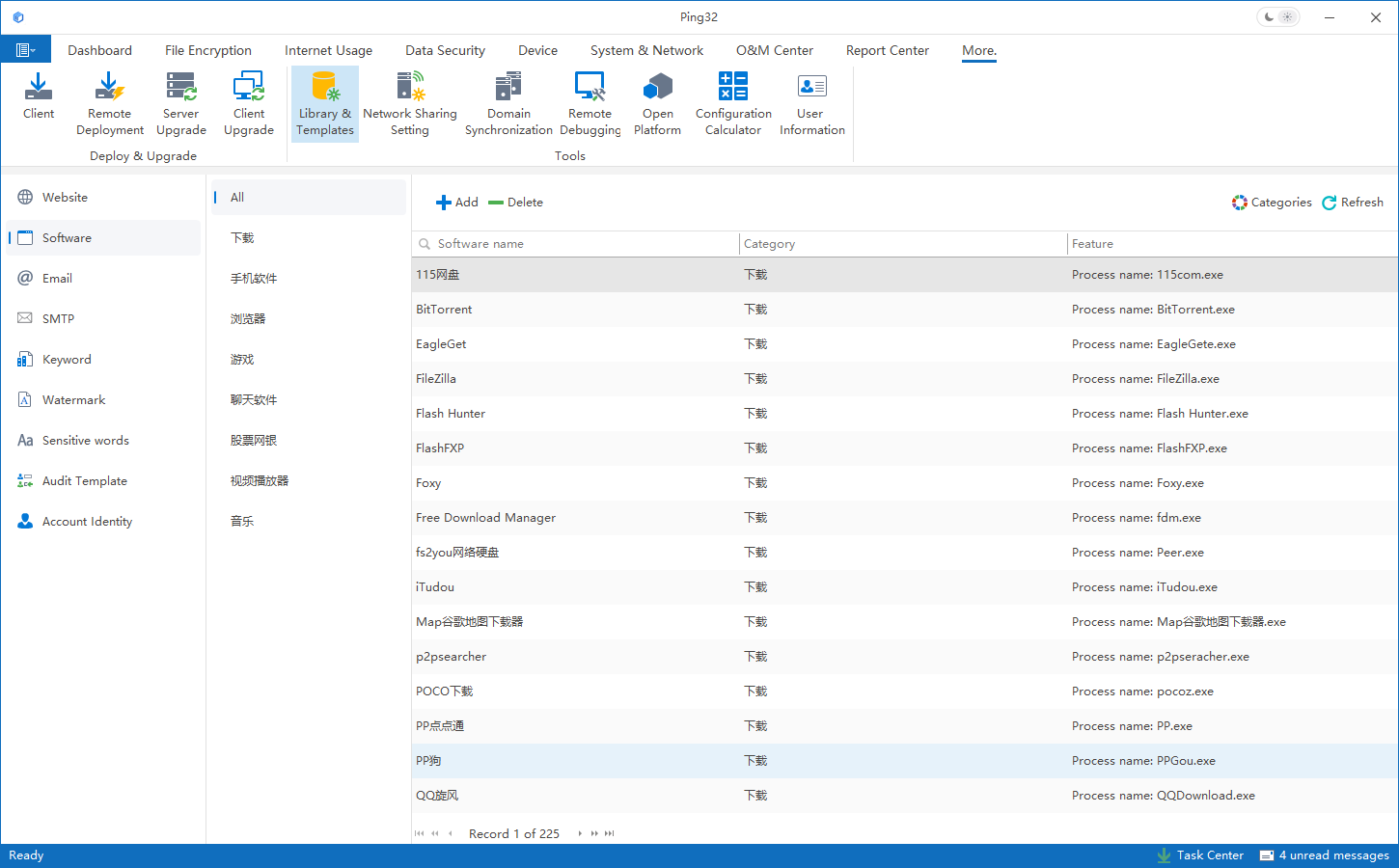
Add software to the software library
The Ping32 software library has hundreds of built-in software, covering multiple fields and industries, and can meet the needs of different users. In the Ping32 policy, you can control various aspects of behavior through software processes, such as: displaying watermarks in designated software windows; prohibiting endpoints from running certain software, etc.
1. Select the "Software Library" menu to set the software. Select the original software to delete or modify the software. Double-click the software to modify it.
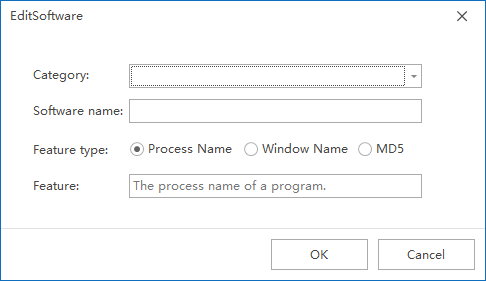
2. Support custom addition of software processes that are not in the library. Click the "Add" button and select the software category.
Fill in the software information as required:
- Software Type:
- Can be selected in the drop-down menu
- You can also enter the custom type name directly
- Once entered, the type will appear in the drop-down menu the next time it is added
- Software Name:
- The name used to display when checking in functions such as "Software Blacklist"
- Software Features:
- Recommended selection Process Name
- Window name, MD5 usually need to be obtained with the help of tools before filling in
- Eigenvalues:
- If the software feature selects Process Name, fill in the corresponding Process Name here.
3. After completing the filling, click
OKto save, and the addition of the software library will be completed.
Updated


