How to Store Smart Screenshot Data from Endpoints on the Server
Storing intelligent screenshots on the server is conducive to unified retention, centralized retrieval and long-term auditing. For scenarios where you are often offline, work across regions, or it is inconvenient to have direct access to endpoint equipment, server storage can significantly reduce the management risk of "the endpoint cannot view records when it is not […]
Storing
intelligent screenshotson the
serveris conducive to unified retention, centralized retrieval and long-term auditing. For scenarios where you are often offline, work across regions, or it is inconvenient to have direct access to endpoint equipment, server storage can significantly reduce the management risk of "the endpoint cannot view records when it is not online", and is more suitable for subsequent centralized retrieval and audit spot checks.
Before implementation, it is recommended that administrators first confirm whether the server storage capacity and object storage planning meet the requirements. Smart Screenshots are continuous data collection. If there are a large number of endpoints and the frequency of screenshots is high, the retention period, screenshot rules and retrieval requirements should be evaluated simultaneously to avoid the problem of excessive storage growth in the future.
Configuration steps
1. Click
Data Security→
Policyon the console to enter the data security policy settings page.
2. Click
Screen Securityto enable the
Smart Screenshotpolicy.
3. Click
Parameter Settingsto enter the Smart Screenshot policy setting interface.
4. Click
Addto create/configure a Smart Screenshot policy.
5. In the policy configuration, select
Save Locationas
Serverand click
Confirm.
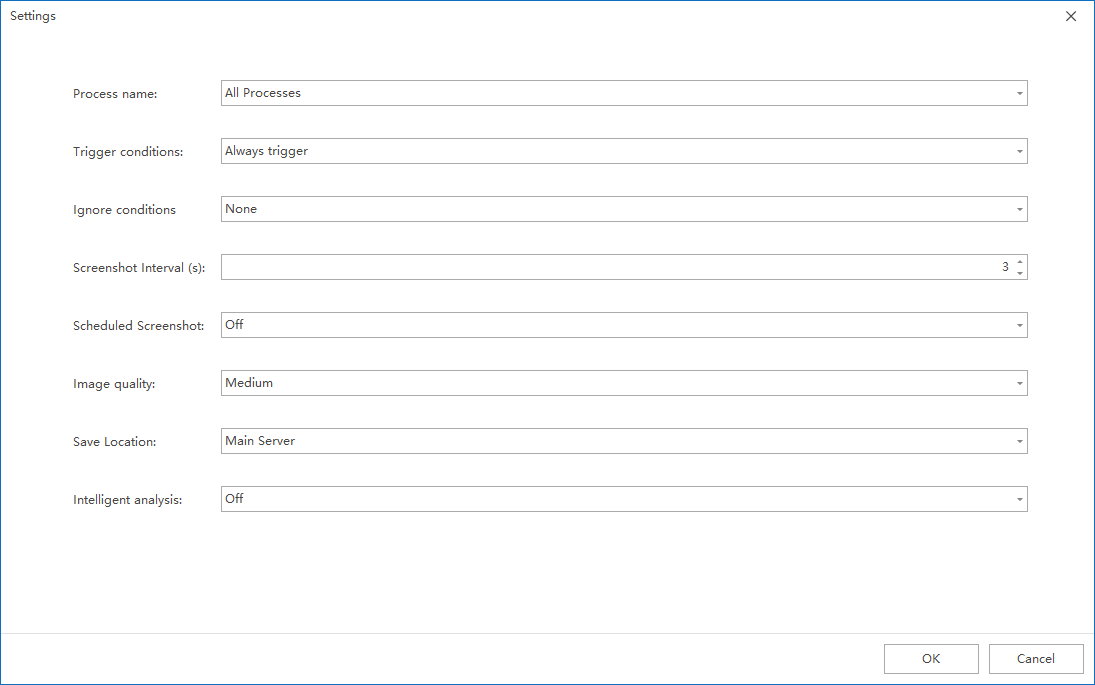
6. After confirming that the policy application endpoint is correct, click
Applyto enable the Smart Screenshot policy for the endpoint and store the relevant screenshots on the server.
Validation verification and implementation suggestions
After the policy is issued, it is recommended to trigger a screenshot on the test endpoint, and then go to
Data Security→
Screen Recordto see whether the screenshot of the endpoint can be opened normally in the console. If the previously generated records can still be viewed after the endpoint is offline, it usually means that the server-side storage has taken effect.
- For long-term audit scenarios, it is recommended to give priority to the server storage mode.
- If the number of screenshots is large, Process Information, Ignore Condition and Screenshot Interval can be combined for refined control, taking into account both audit effects and storage costs.
- If you want to search based on screenshot text in the future, you can further enable Intelligent Analysis and deploy the OCR service on this basis.
Updated


