

Smart Screenshot is suitable for periodic evidence coll […]
Smart Screenshot is suitable for periodic evidence collection of endpoint desktop activity, helping administrators continuously understand screen changes for key roles during designated time periods and within designated business applications. Compared with continuous screen recording, scheduled screenshots usually consume less storage and are better suited to long-term trace retention, spot checks at key moments, and behavioral traceability.
Before officially issuing the strategy, it is recommended to clarify the screenshot goal first. If you want to continuously track the usage of a certain type of business system, you can limit the scope of screenshots to specified programs through Process Information; if you only want to retain screen evidence during working hours, you should plan the Screenshot Interval, Scheduled Screenshot and Ignore Conditions in advance to avoid the accumulation of invalid data caused by excessive collection.
Policy configuration steps
1. Switch to the Data Security tab in the Ping32 Management Console and click Policy → Screen Security (as shown below).
2. Enable the Smart Screenshot slider, and then click Parameter Settings (as shown below).
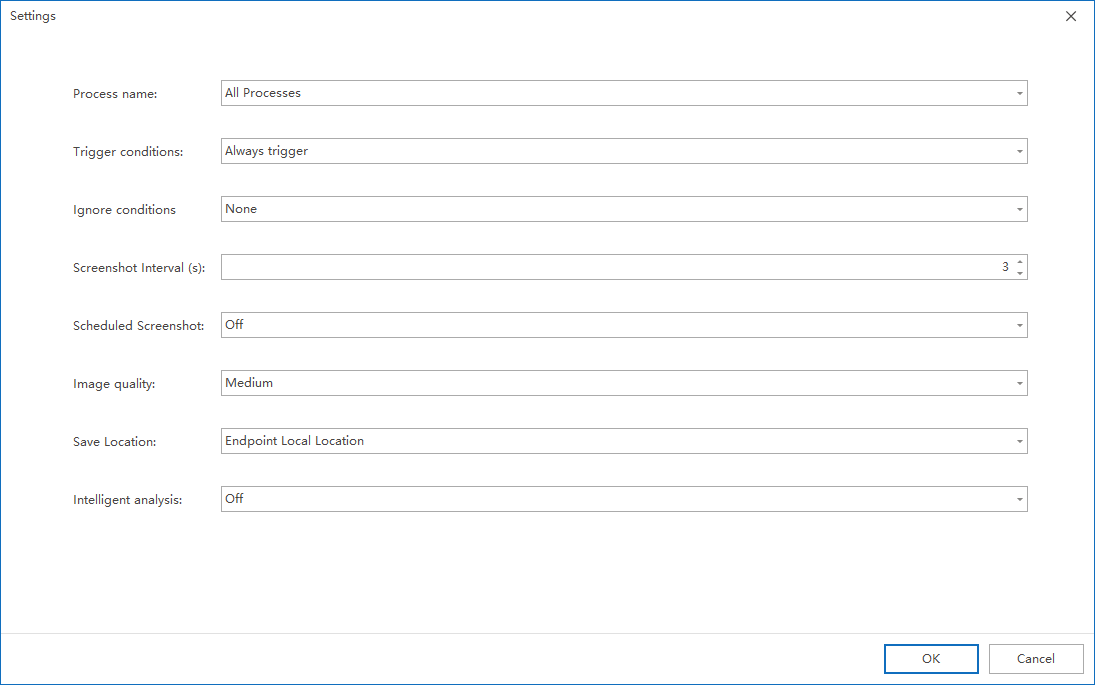
3. Click the “+” button to configure parameters. The key parameters are explained as follows:
Process Information: The client will only trigger screenshots when running the specified process.
Trigger conditions:
- Always: Always take screenshots
- Only in foreground: Take a screenshot only when the specified process is in the foreground
Ignore conditions: You can choose to lock the screen or stop taking screenshots when the mouse is idle for a specified time to save disk space.
Screenshot Interval: How many seconds to capture a picture.
Scheduled screenshot: Take a screenshot at a specified time point. This parameter is independent of the Screenshot Interval.
- Example: If you set the “Screenshot Interval” to 3 seconds, and also set “Screenshot at 11:00”, then a picture will be captured at 11:00, even if the time is not at the 3-second interval.
Save Location: It is strongly recommended to select Server.
- Screenshots and other data are stored in the object storage directory:
\Ping32\Server\DataDB\s3\ping32\smartsnap
Smart Analysis: Used to Unified Search and retrieve text information in Smart Screenshots, requiring a separate OCR engine deployment.
4. After the screenshot policy is set, confirm that the policy application endpoint is correct, and then click Apply to officially deliver the Smart Screenshot policy to the target endpoint.
Parameter configuration ideas
In actual use, the combination of screenshot interval and scheduled screenshot determines the collection granularity. If the administrator needs to continuously observe the operation process, the screenshot interval can be shortened appropriately; if more attention is paid to certain fixed time points, such as shift handover, settlement, batch export and other time nodes, scheduled screenshots can be used to supplement this to ensure that screenshots are retained at critical moments.
Ignore condition Mainly used to reduce the proportion of invalid screenshots. For endpoints that are online for a long time but are not continuously operated, it is recommended to control the lock screen, mouse idle time and other conditions to reduce the impact on server storage and retrieval efficiency. If you plan to subsequently retrieve screenshot text through Unified Search, you should also plan the OCR environment simultaneously and enable intelligent analysis in the strategy.
Effect verification and implementation suggestions
After the policy takes effect, it is recommended to open the controlled business program on the test endpoint, wait for a complete collection cycle, and then go to Data Security → Screen Record to check whether the Smart Screenshot record of the corresponding endpoint has been generated. If the screenshot is not generated as expected, you should first check the following items: whether the process matches, whether the endpoint meets the trigger conditions, whether it is filtered by ignored conditions, and whether the policy has been correctly applied to the target endpoint.
- If the enterprise wants to view records stably even offline, it is recommended to set the save location to server.
- If you need to retrieve the text information in the screenshot by keyword later, you need to complete the deployment of the OCR server in advance and enable Intelligent Analysis in the screenshot policy.
- If the screenshot object is a high-frequency operation position, it is recommended to test run it on a small scale first, and then adjust the collection interval based on the number of screenshots and the retrieval effect.

