How to Audit Employees' Printed Files
Print auditing is one of the basic capabilities in data security governance. By turning on Print Log Audit, administrators can continuously record when employees print, what they print, and whether they need to keep print file backups simultaneously. Such records can be used for daily spot checks, and can also provide audit evidence after disputes, […]
Print auditing is one of the basic capabilities in data security governance. By turning on
Print Log Audit, administrators can continuously record when employees print, what they print, and whether they need to keep print file backups simultaneously. Such records can be used for daily spot checks, and can also provide audit evidence after disputes, illegal output, or information leaks.
If the company is not currently planning to directly restrict employees' printing rights, it is recommended to at least enable print auditing first. Leaving traces first and managing them later is often more helpful for administrators to grasp the actual printing rules before deciding whether to further add
printing control,
printing watermarkor an approval mechanism.
Configuration steps
1. Click
Data Security→
Policyon the Ping32 Management Console to enter the policy setting interface.
2.In the data security policy settings page, click
Print Securityto enable
Print Log Audit.
- Backup print files: Check to back up the print content.
3. After the policy setting is completed, confirm the policy application endpoint.
4. After confirming the policy application endpoint, click
Applyto start auditing employee print file records.
5. After the policy is issued, click
Data Security→
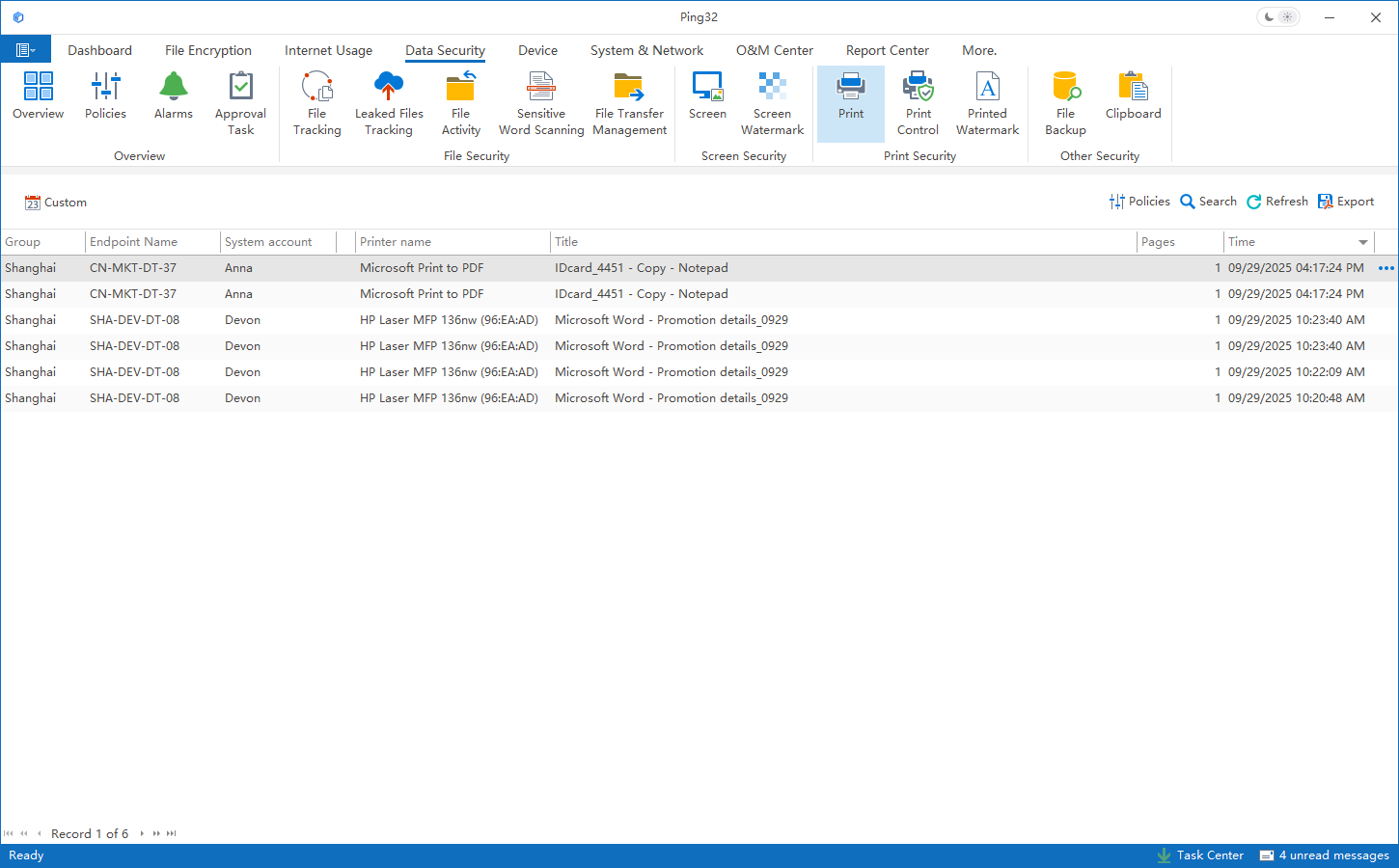
Print Auditto view the relevant audit records printed by employees.
Effect verification and usage suggestions
After the policy takes effect, it is recommended to perform a printing operation on the test endpoint, and then return to
Data Security→
Print Auditto check whether the corresponding record has been generated. If
Backup Print Fileis also checked, you should further confirm whether the printed content has been saved as expected so that it can be directly accessed for subsequent verification.
- If the enterprise mainly focuses on auditing and evidence collection, it is recommended to keep Print Log Audit enabled for a long time.
- If the printed content involves highly sensitive information, it can be combined with backup print files to improve review capabilities, but attention should also be paid to server storage occupancy and access rights management.
- If it is later discovered that the printing frequency of certain positions is abnormal, Print Control, Print Watermark or approval strategies can be superimposed on this basis.
Updated


