Unified Search and OCR Engine Configuration
This article explains how to use Ping32 Unified Search and how to deploy and configure the OCR engine. After configuration is complete, administrators can perform centralized searches across multiple audit data types and search text extracted from Smart Screenshot records. Feature overview and common use cases Unified Search provides a centralized search portal for audit […]
This article explains how to use
Ping32 Unified Searchand how to deploy and configure the
OCR engine. After configuration is complete, administrators can perform centralized searches across multiple audit data types and search text extracted from
Smart Screenshotrecords.
Feature overview and common use cases
Unified Searchprovides a centralized search portal for audit and security operations. It helps administrators query, correlate, and filter audit data across multiple modules.
Common use cases include:
- Security incident investigation: trace user activity by user, endpoint, keyword, or file name.
- Compliance review and evidence collection: verify and export records such as email, printing, outbound transfer, and screenshots.
- Risk investigation: narrow the scope by time range and module to improve investigation efficiency.
Unified Search can cover data such as:
- Data Leak Tracing: endpoint name, user, file name, exfiltration channel, and related fields.
- Smart Screenshot: text-based search on screenshot content after OCR is enabled.
- Email: sender, recipient, subject, body, attachments, endpoint, and user.
- Print records: virtual printing, physical printing, and scanned printing records.
How to use Unified Search
1. In the Ping32 Management Console, click
Start->
Unified Search.
2. Enter search keywords such as a username, endpoint name, file name, or phrase.
3.Use advanced filters whenever possible:
- Endpoint scope: organization, department, or endpoint set
- Time range: narrow the search window to the relevant event period
4. Filter by module to further reduce the result set.
Recommendation: Use time range + endpoint scope first, then add keywords and module filters. This usually produces more accurate results and reduces noise.
OCR engine deployment
The OCR engine extracts text from screenshots, images, and documents so that the content can be indexed and searched in Unified Search.
Deployment recommendations:
- Install the OCR components on a partition with sufficient free disk space.
- OCR processing consumes CPU resources. Plan deployment during off-peak hours and confirm that the server has adequate available capacity.
Deployment steps:
- Install the Ping32 OCR engine. Obtain the latest installation package from the vendor or service provider.
- Go to the
OneDLP\projectdirectory. - Replace the required files according to the delivery package or version instructions.
- Restart the NxImage service. After the service starts successfully, the OCR engine deployment is complete.
Configure OCR integration in Ping32
After the OCR engine is deployed, you must enable the related recognition settings in Ping32.
1. Go to
Start->
System Settings->
Advanced Settings->
Text Recognition->
Parameter Settings.
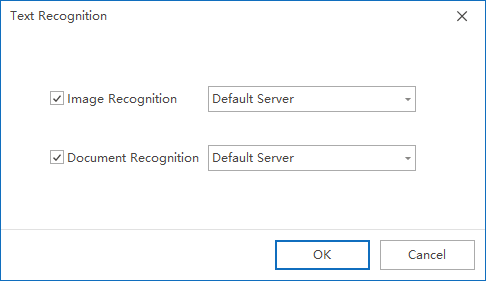
2. Enable the required capabilities:
- Image Recognition
- Document Recognition
3. Save the configuration.
Note: Installing the OCR engine alone is not enough. The corresponding recognition capabilities must also be enabled in Ping32, or the data will not enter the OCR and indexing workflow.
Enable Smart Screenshot text indexing
To search text in
Smart Screenshotrecords, you must also enable
Smart Analysisin the relevant policy.
1. Go to
Data Security->
Policy->
Screen Security->
Smart Screenshot->
Parameter Settings->
Add.
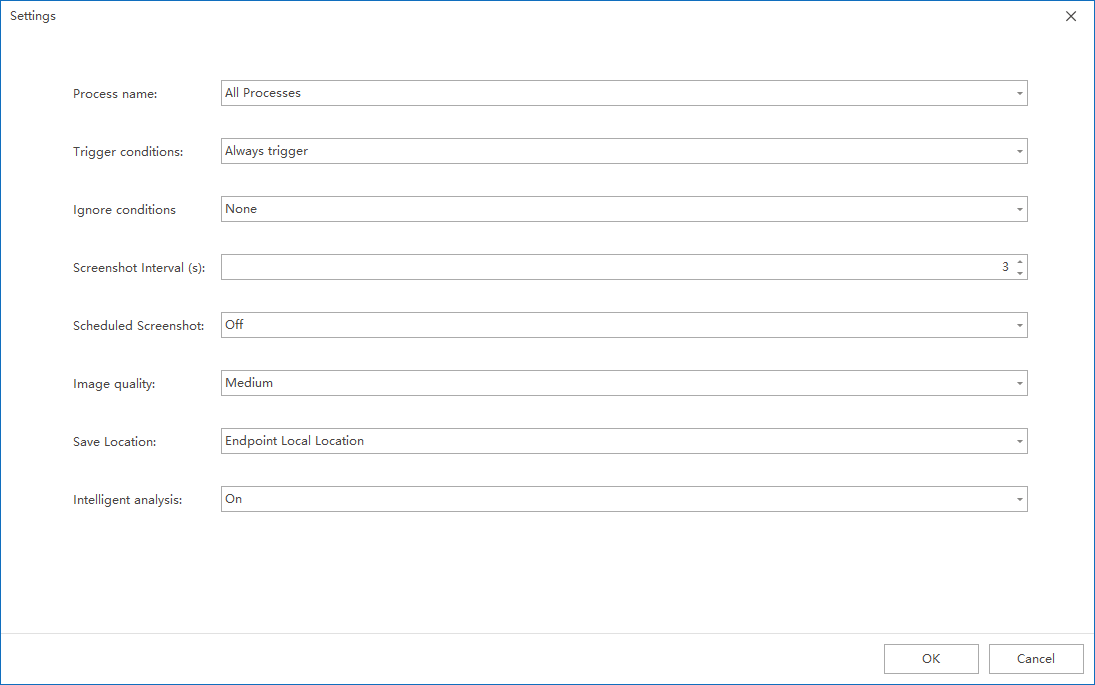
2. Enable
Smart Analysis.
Save the policy.OCR-based search depends on a complete chain: recognition -> indexing -> searchability. If Smart Analysis is not enabled, screenshots are stored only as images and cannot be searched by text.
Validation and important limitations
Validation example:
1. Use Unified Search to search for text that appears in a Smart Screenshot record.Expected result:If the related screenshot record can be found, OCR deployment, service loading, system configuration, and policy configuration are all working correctly.
2. If no results are returned, check the following first:
- Whether the NxImage service is running normally
- Whether text recognition parameters are enabled
- Whether the Smart Screenshot policy has Smart Analysis enabled
- Whether the search conditions are too broad or the selected time range does not cover the target record
Important limitation:
- Only Smart Screenshot records generated after OCR deployment and policy activation support OCR text search by default.
- Historical screenshot records generated before OCR deployment are usually not re-indexed automatically.
After completing the above configuration, you can use Unified Search to perform centralized searches across multiple audit data types and use OCR-based text search on Smart Screenshot content to support audit evidence collection and incident response.
Updated


