How to Back Up Employees' Outbound Files
Only recording the outgoing behavior can help administrators know "the file was sent out"; and turning on the outbound file backup can further preserve "which file was sent out." For businesses that need to review content after the fact, secure original evidence, or meet internal audit requirements, Breach Backup is a very important enhancement in […]
Only recording the outgoing behavior can help administrators know "the file was sent out"; and turning on the outbound file backup can further preserve "which file was sent out." For businesses that need to review content after the fact, secure original evidence, or meet internal audit requirements,
Breach Backupis a very important enhancement in addition to
Breach Tracking.
It is recommended that administrators configure the backup scope in a refined manner based on business risks. For highly sensitive positions such as R&D, finance, human resources, and legal affairs, the scope of backup can be appropriately relaxed; for ordinary office positions, backup can be selectively combined with external channels and file rules to take into account both audit value and storage cost.
Configuration steps
1. Click
Data Security→
Policyon the Ping32 Management Console to enter the data security policy settings page.
2. In the data security policy settings page, click
File Securityto turn on
Leak Trackingfor external behavior monitoring and auditing.
3. Click
Leak Backup, then click
Addto enter the backup setting interface and complete the relevant configuration:
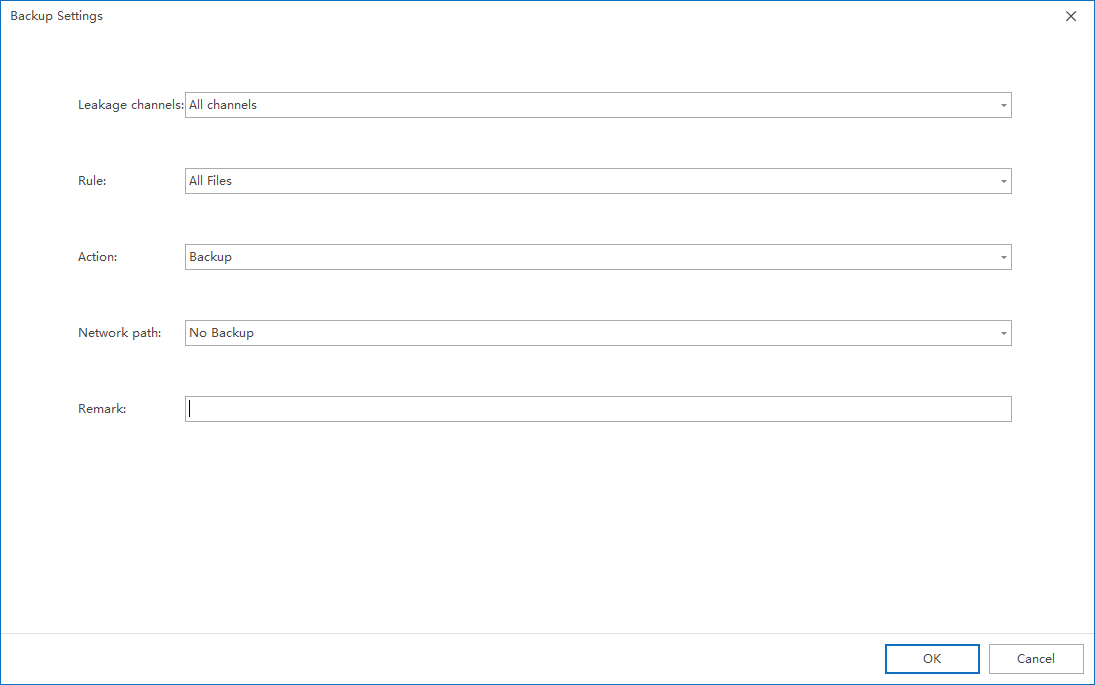 Outbound Routes
can be set to
All Routesor
Specified Outbound Routes:
- All channels: Backups are performed for employees’ external actions through any channel
- Specify outgoing channels: Only perform backups for outgoing behaviors through designated channels (such as WeChat, browsers, network disks, etc.)
Click the Settings button.Check outbound channels such as browsers, instant messaging software, and email clients.
Support custom programs: Select "Custom Program" and click the Settings button to fill in the process name of the custom program.
4. Rulescan be set to
All filesor
Composite rules:
- All files: Back up all outbound files
- Compound rules: can be set according to file type and file size, and only files that meet the conditions will be backed up
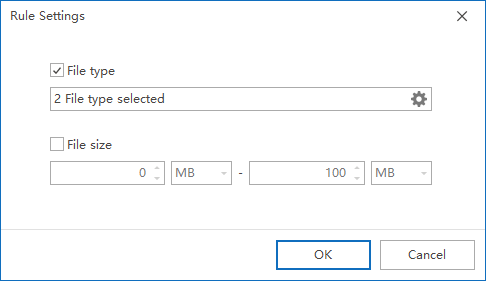
5. After the policy setting is completed, confirm the policy application endpoint.After confirming the policy application endpoint, click
Applyto start the backup operation of files sent by employees.
6.After the policy is issued, click
Data Security→
Leak Trackingto view the outbound file backup records:
- When the outbound file audit record has the backup flag, it means that the outbound file has been backed up.
- The backup file can be viewed directly in the console
Effect verification and implementation suggestions
It is recommended to send the test file on the test endpoint through an outgoing channel that has been included in the backup scope, and then go to
Data Security→
Leak Trackingto confirm whether the backup mark appears on the record, and further check whether the corresponding backup file can be opened or viewed. If no backup results appear, priority should be given to checking whether the outgoing channels, rule conditions, and policy application endpoints are accurate.
- If there are many outbound channels, it is recommended to configure backup for high-risk channels first, such as instant messaging, browser upload, network disk or email client.
- If an enterprise only cares about specific types of files, it is recommended to use composite rules for filtering to avoid indiscriminate backups that generate a large amount of low-value data.
- For long-term enabled backup strategies, server storage capacity and access permissions should be planned simultaneously to prevent backup itself from becoming a new data management risk.
Updated


