How to Control Employees' Outbound Emails
Outgoing emails are the most common and most overlooked data flow channel for enterprises. Post-event audits alone can often only trace problems after they occur; with Ping32's Email Control, administrators can limit the scope of incoming and outbound emails and sensitive content before they are sent, moving risks forward to the sending process. Ping32 email […]
Outgoing emails are the most common and most overlooked data flow channel for enterprises. Post-event audits alone can often only trace problems after they occur; with Ping32's
Email Control, administrators can limit the scope of incoming and outbound emails and sensitive content before they are sent, moving risks forward to the sending process.
Ping32 email control supports the following types:
- HTTPS protocol Web mailbox: such as NetEase mailbox, QQ mailbox
- SMTP/Exchange protocol email client: such as Foxmail, Outlook
For enterprises, this capability is usually applicable to three types of scenarios: first, to restrict employees from sending emails to unauthorized addresses; second, to control highly sensitive content from being sent out through emails; third, to implement stricter email outgoing policies for specific positions, specific departments, or special periods.
Enable email management and control through policies
1. Click
Internet Behavior→
Policyin the Ping32 Management Console to enter the Internet Behavior Policy Settings interface.
2. In the Internet behavior policy setting interface, click
Emailto turn on
Email Control.
3. Click
Parameter Settingsto enter the email management and control interface.
It is recommended to determine the control goal before formal implementation: whether it is to "restrict who can be sent to", or to "identify what is sent", or to control both at the same time. The clearer the goal, the easier it is to design subsequent rules that are effective without excessively affecting normal work.
Configure email control rules
1. Control by sender and receiver email address (whitelist)
Set the sender and receiver whitelist in the email management interface:
- Sender Whitelist: Only allow specified email addresses to send emails
- Recipient Whitelist: Only allow emails to be sent to specified mailboxes
This type of rule is more suitable for scenarios where "who to send to" is more important than "what to send", such as:
- Only business mailboxes are allowed to be sent externally, personal mailboxes or temporary mailboxes are not allowed to be used for external work sending;
- Only allow emails to be sent to the company's internal domain names, partner whitelist domain names, or approved designated addresses;
- During the dedicated period, materials are only allowed to be sent to a fixed range of recipients.
Note:
- The email address supports the wildcard character
*, for example:*@gmail.com - You can click "Select Email Address" on the right to quickly select an email address
- Email addresses support custom addition (refer to "Method to add email address library")
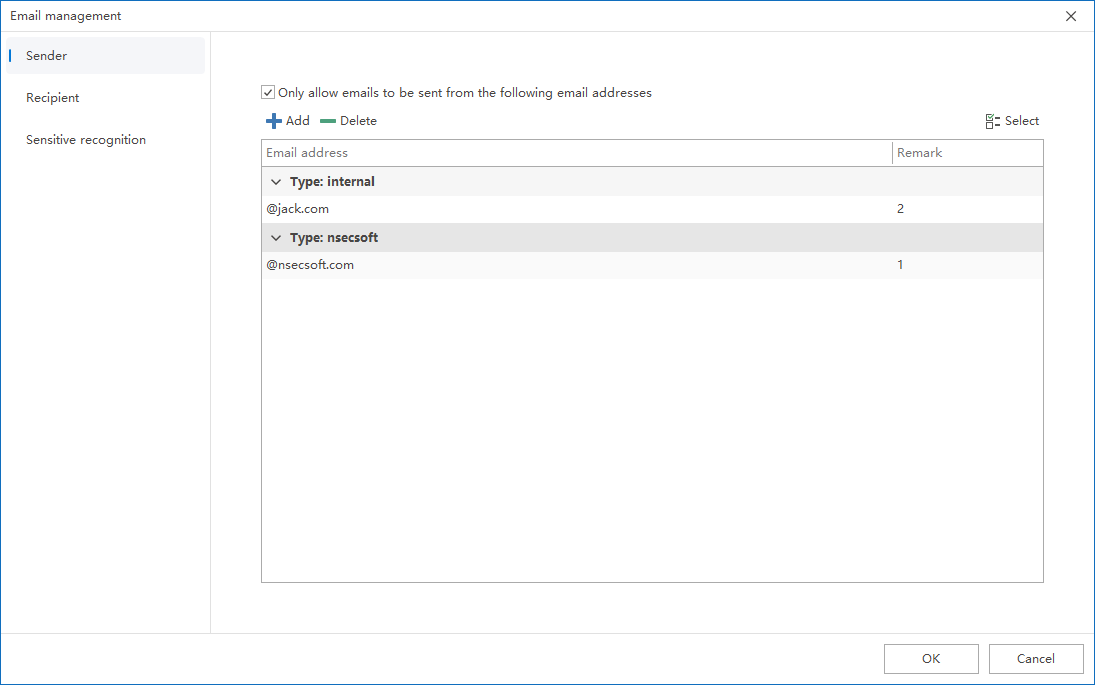
If the enterprise's allowed sending and receiving range is relatively fixed, it is recommended to maintain the email address database first and then reference it in the policy, rather than temporarily entering it manually every time. This can not only reduce configuration errors, but also facilitate subsequent multi-person collaborative maintenance.
2. Control based on sensitive content identification
Set sensitive content identification in the email management interface:
- Check Sensitive Content Identification
- Check the sensitive words that need to be identified below (sensitive words support custom addition, refer to "Data Classification Library Adding Method")
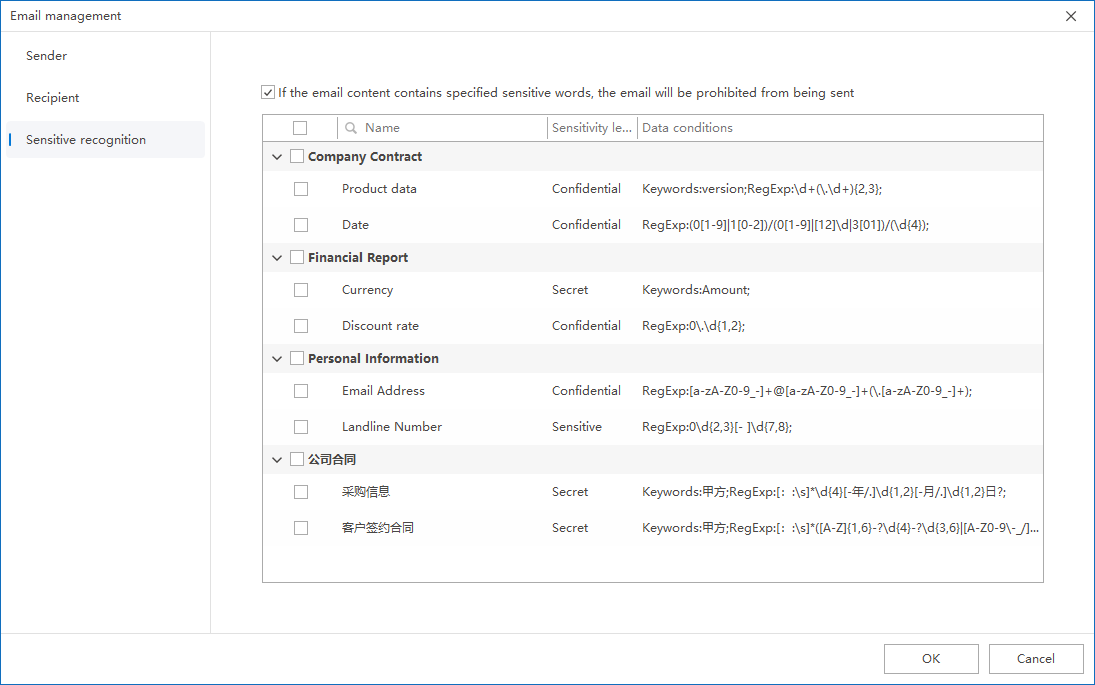
This method is more suitable for scenarios where the "email content itself" is the core concern. For example, employees can send emails normally, but if the text or attachments contain sensitive content such as customer information, project information, contract data, financial content, etc., they need to be identified and controlled.
From an implementation perspective, the sender and receiver whitelist addresses "whether the path is compliant", while sensitive content identification addresses "whether the content is compliant". The combination of the two allows the control of outbound emails to have both boundaries and depth.
Apply the strategy and verify the effect
After the policy setting is completed, confirm the policy application endpoint.It is recommended to give priority to representative pilot endpoints, such as covering both web mailbox users and Outlook users, so as to verify the control effect under different email sending methods.
After confirming the policy application endpoint, click
Applyto control employee outbound emails.
After the policy takes effect, it is recommended to construct at least three types of test emails for verification:
- An email with compliant recipients and content to confirm that normal business will not be accidentally affected;
- An email whose recipient is not in the whitelist is used to confirm that address control is in effect;
- An email containing sensitive content to confirm that Sensitive Content Identification was triggered as expected.
If the verification results are inconsistent with expectations, check first: whether the email address whitelist is configured accurately, whether the test endpoint falls within the scope of the policy application, and whether the selected sensitive words or data classification rules adequately match the real email content.
Implementation Suggestions and Common Misunderstandings
In order to truly implement outbound email control, it is recommended to pay attention to the following points during the implementation process:
- It is not recommended to enable the strictest whitelist and sensitive content control for all employees from the beginning. It is best to verify high-risk departments or pilot groups first.
- The recipient whitelist solves "who to send to", and Sensitive Content Identification solves to "what to send". Don't just match one of them and expect to achieve a complete outbound management effect.
- If false interceptions occur frequently, give priority to checking whether the email address range is too narrow, whether the data classification rules are too broad, and whether the keywords are too general.
- If a sensitive email is not identified, the priority is to go back and check whether the rules of the data classification library cover the actual text or attachment content, rather than directly judging the policy to be invalid.
Only by using the
mail control, email address database, and data classification database together can Ping32 form a truly implementable governance mechanism in the outbound email scenario: it will neither allow sensitive information to be sent out in an orderly manner nor excessively interfere with normal business email flow.
Updated


