How to Add Entries to the Data Classification Library
Sensitive words in functions such as sensitive content analysis and intelligent encryption need to be added and maintained in the data classification library first. Enter the data classification database 1. Click Start -> Libraries & Templatess in the Ping32 Management Console to enter the library & template setting interface. 2. Click Data Classification -> Add. […]
Sensitive words in functions such as sensitive content analysis and intelligent encryption need to be added and maintained in the
data classification libraryfirst.
Enter the data classification database
1. Click
Start->
Libraries & Templatessin the Ping32 Management Console to enter the library & template setting interface.
2. Click
Data Classification->
Add.
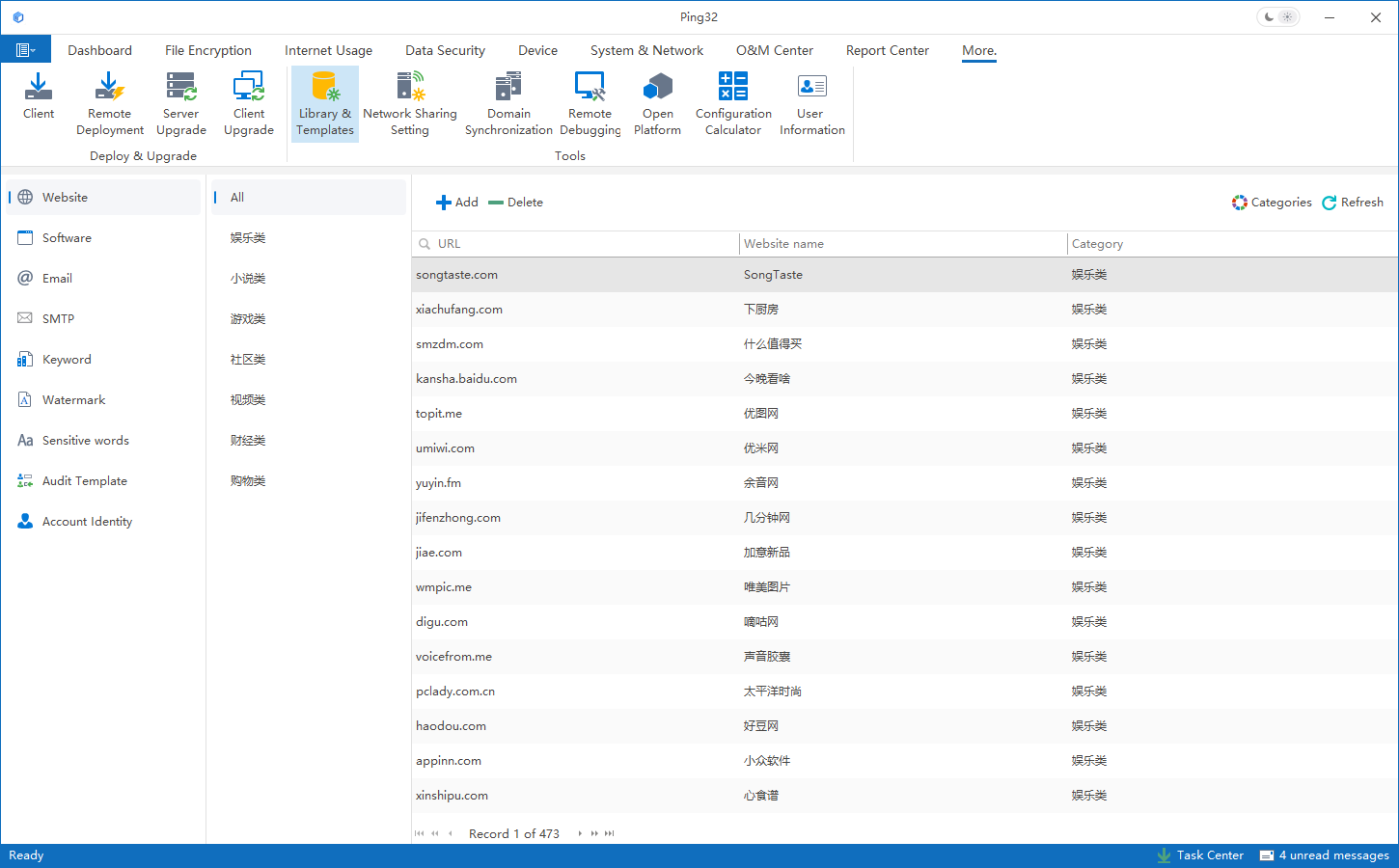
General settings
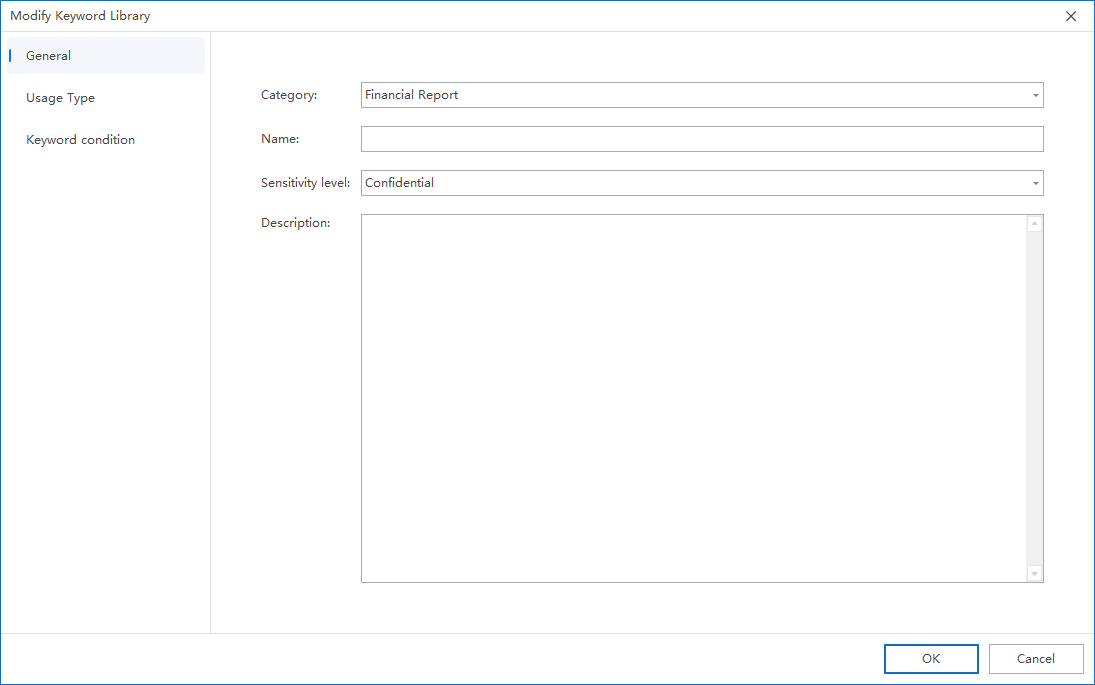
Configure in the "General Settings" tab:
- Select sensitive word types: company contracts, financial reports, personal information, management systems
- Fill in the name of the sensitive word
- Select sensitivity level: Normal, Minor, Serious, Confidential, Top Secret
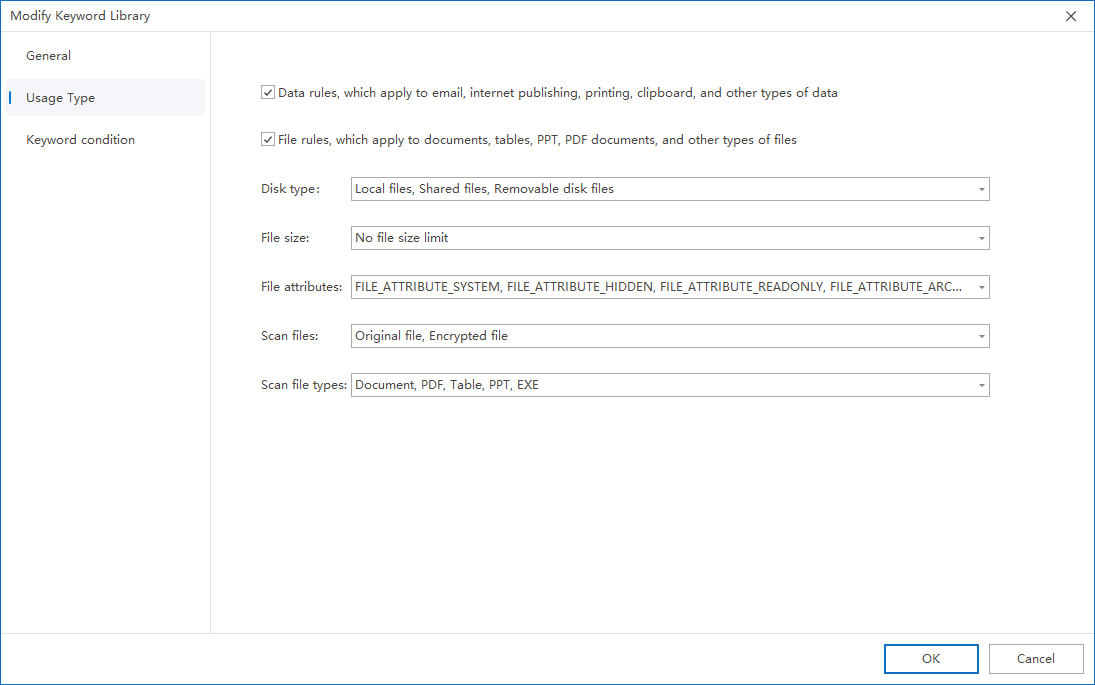
Application Type
Configure in the "Application Type" tab:
1. Check
Data Rulesor
File Rules2. Select and configure the following items according to your needs:
- Disk type
- File size
- File properties
- Scan encrypted files
- Scan file types
Field description:
- Disk type: You can select sensitive word rules for endpoint local files, shared files, and removable disk files
- File size: You can choose sensitive word rules to be used in files of a specified size, or do not limit the file size
- File attributes: You can select sensitive word rules for files with system attributes, hidden attributes, read-only attributes, archive attributes or other attributes.
- Scan encrypted files: You can choose to scan ordinary files and encrypted files for sensitive words
- Scan file types: You can select sensitive word rules for documents, PDF documents, tables, and presentation types of files.
Data conditions
Configure in the "Data Conditions" tab:
1. Click the
"+"button to add sensitive word rules
2. Fill in the name of the sensitive word
3. Value type selection:
Keywordor
Regular Expression4.Set the number of occurrences of keywords
5. Set appearance conditions:
Mandatory/Non-Mandatory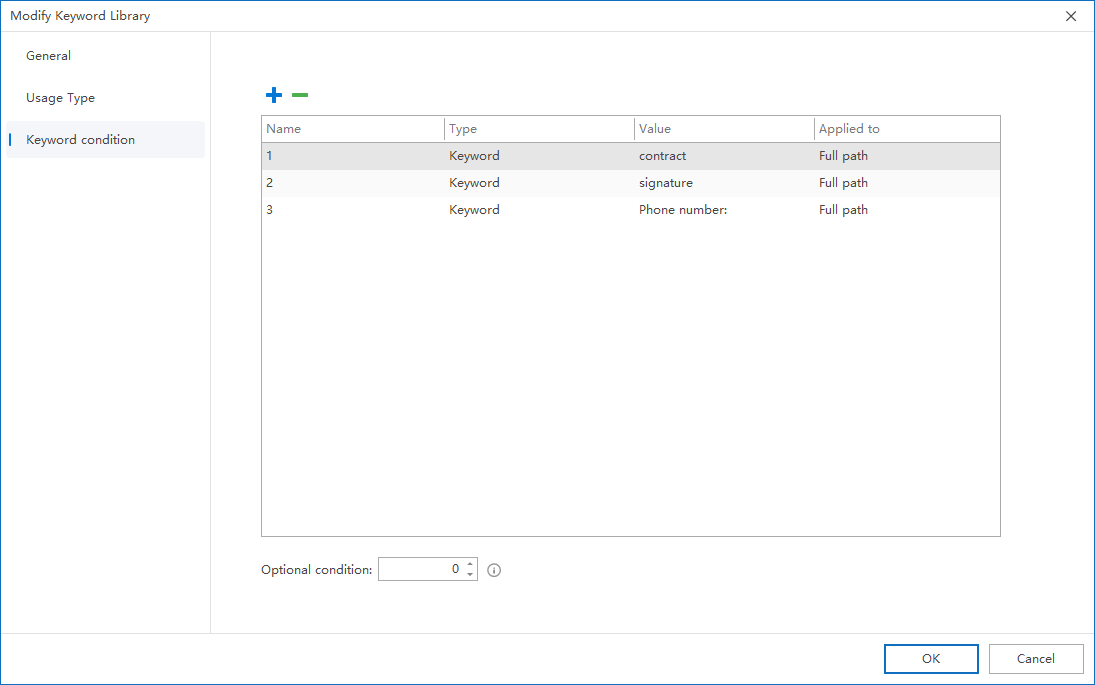
Description of non-mandatory conditions
Non-mandatory: When the keyword rule contains multiple non-mandatory conditions, you can set
"The specified number of non-mandatory conditions appear at the same time"to identify the category (red position of the icon below).
Example:
- If there are 2 non-mandatory conditions in the rule and the "specified number" is set to 1:
- As long as any one of the two non-mandatory conditions is met in the content of the endpoint file, it will be identified as a sensitive file.
- If 1 non-mandatory condition is not met, the file will not be identified as sensitive
Updated


