How to Customize Risk Levels for Outbound File Transfer Activity in Leak Tracking
Different companies often have completely different standards for judging what behavior is considered a high-risk leak. For some companies, sending office documents through corporate WeChat is an acceptable behavior; for other companies, as long as files are uploaded through personal chat tools, network disks or browsers, it should be considered a high-risk event. Ping32 provides […]
Different companies often have completely different standards for judging what behavior is considered a high-risk leak. For some companies, sending office documents through corporate WeChat is an acceptable behavior; for other companies, as long as files are uploaded through personal chat tools, network disks or browsers, it should be considered a high-risk event. Ping32 provides a configurable
risk ratingmechanism precisely to allow administrators to conduct more realistic risk stratification for leaks based on their own business and compliance requirements.
Purpose and significance
In order to adapt to the differences in software usage scenarios and compliance requirements of different enterprises, Ping32 supports setting different risk levels for different leak channels in a "configurable" way. Enterprises can define more realistic risk rating rules for different leakage channels based on their own business characteristics and security strategies.
By customizing the risk level for leakage, enterprises can achieve:
- Avoid false positives and reduce excessive alerts: Define risk conditions by yourself, reduce invalid alerts, and allow security teams to focus on real high-risk events.
- Improve audit efficiency: Risk levels are clearer and more realistic. Auditors can quickly locate suspicious events by filtering specified levels.
- Meet differentiated needs: Different enterprises have different business models and compliance requirements, and the leakage standards in various scenarios can be flexibly configured; risk identification is more intuitive and explainable.
Setting process
The following uses a typical scenario example to illustrate the configuration idea:
Company A is an industrial design enterprise and uses Enterprise WeChat for office work.Target:
- Sending files through corporate WeChat: lower risk
- Sending specific types of files (such as
dwg,x_t,prt, etc.) through personal WeChat, QQ, etc.: higher risk
- All documents sent out via Enterprise WeChat: Risk level = Normal
- WeChat/QQ outbound specified file type: Risk level = High risk
Enter the risk rating setting page
Select
Data Security→
Leakage Tracking→
Risk Ratingto enter the leakage risk rating setting page.
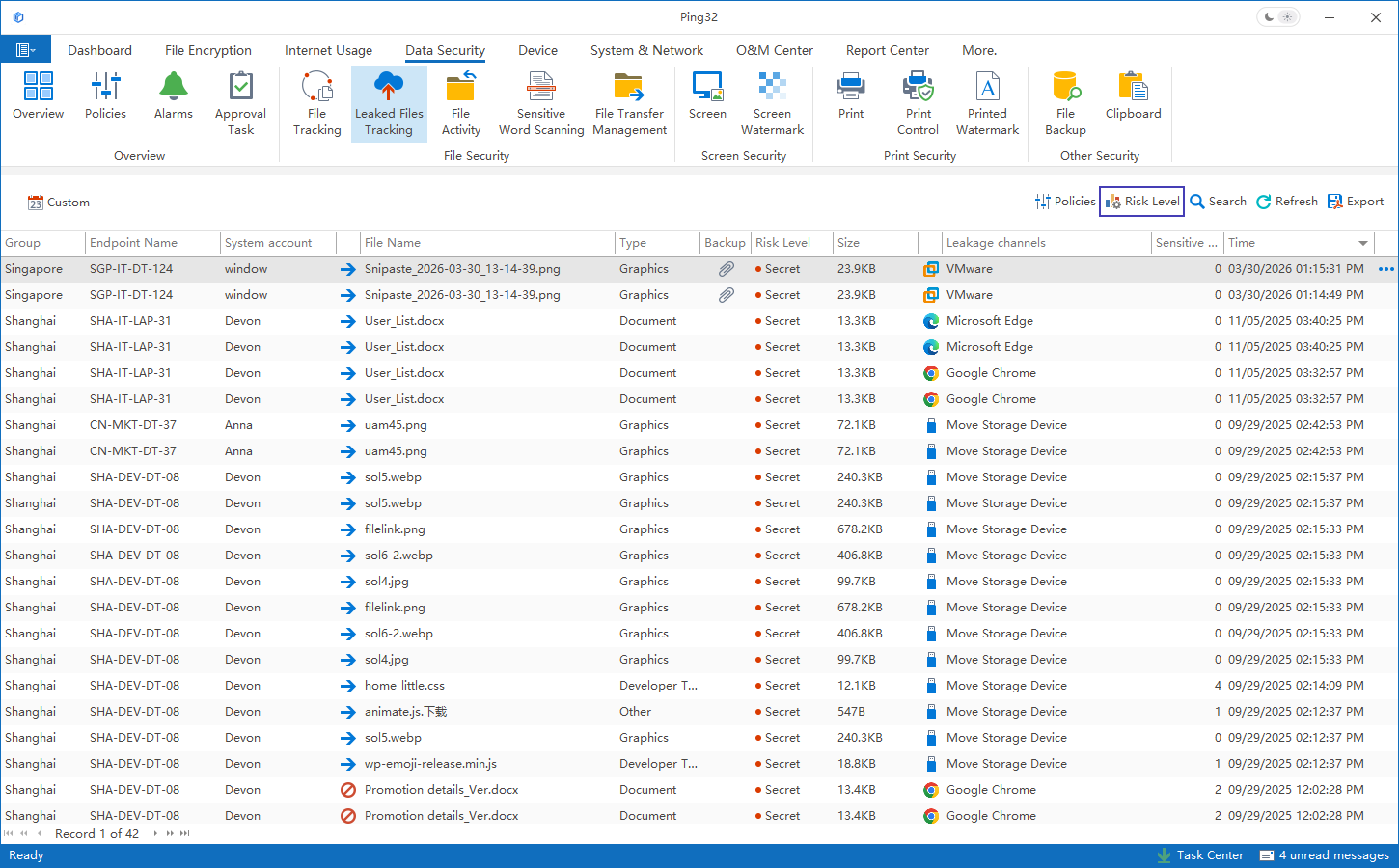
Add risk rating rules for Enterprise WeChat (normal)
1. Click
Addon the risk rating page to add a new leak risk definition rule.
2. In the rule definition interface, select
Leakage Channelfrom the drop-down menu as
Specify the leakage channel.
3. Click the
Gearbutton at the rear to enter the "Specify Leakage Channel" settings.
4. In the pop-up interface, enter the
Softwareoption, check
Enterprise WeChatin the
Socialcategory, and click
OK.
5. Return to the rule definition interface and select
Risk Ratingunder this approach as
Normal(the default level is Normal).Click
OKto complete the setting of "All files sent out by Enterprise WeChat = Normal".
Add risk rating rules for WeChat and QQ (high risk, specified file type)
1. Click
Addagain to add a new rule.
2. Set
Leakage Channelto
Specify Leakage Channeland select
WeChator
QQthrough the gear.
3. Set
File Typeto
Specified File Typeand click
Gearto enter the file type setting interface.
4. In the file type setting interface:
- You can click Select File Type in the upper right corner to quickly select the file type of a specific program;
- You can also click Add in the upper left corner to manually enter the file type (for example:
dwg,x_t,prt,docx, etc.). - Click OK after configuration is completed.
5. Return to the rule definition interface and set the
Risk Ratingto
High Risk.
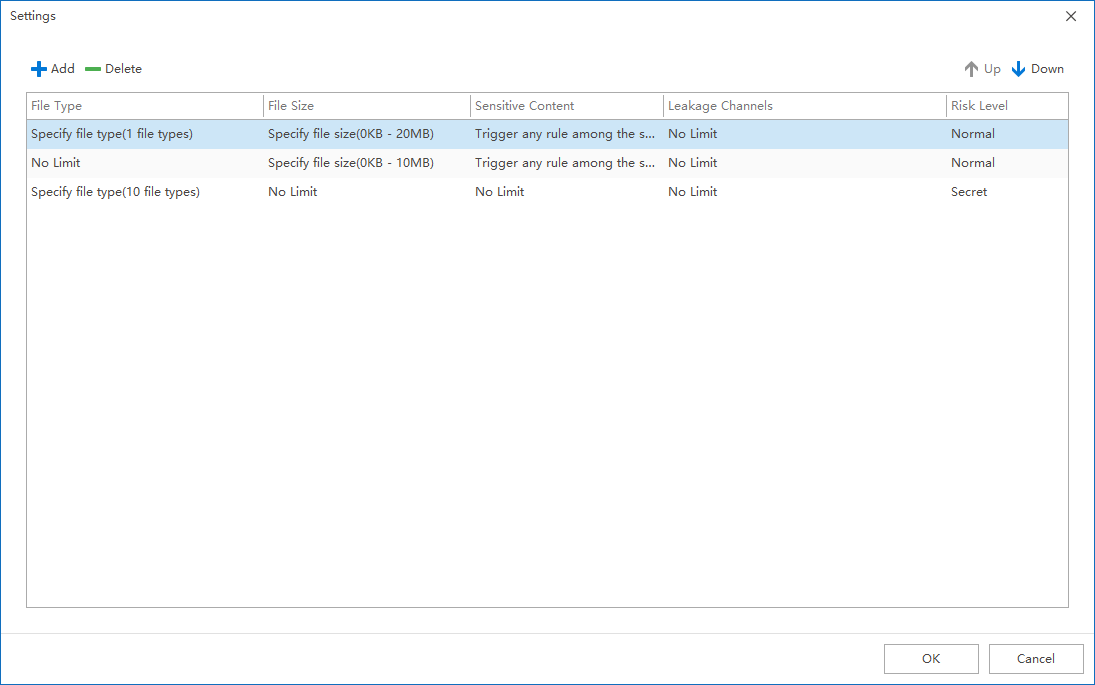
6. Click
OK→
OKto complete the rule configuration.
Further refine conditions (optional)
The risk rating system also supports additional combinations of conditions for more precise risk definition, such as:
- Specify file size
- Determine whether the file contains sensitive content
It can be used in combination according to actual needs to achieve a more fine-grained risk rating strategy.
Realize the effect
After the configuration is completed, the following effects can be achieved:
- Outgoing
txtfiles via QQ: Risk rating is Normal - Sending specified types of files such as
x_tanddocxthrough QQ: the risk rating is High Risk - Outbound files of any type via Enterprise WeChat: the risk rating is always Normal
At the same time, you can quickly locate all
high-riskleak events by
screening risk levelsin the leak tracking records to improve audit and response efficiency.
Implementation Suggestions
- Risk rating rules are recommended to be formulated based on the company's real business scenarios to avoid simply copying general standards.
- If there are different file types, different file sizes, or different levels of sensitive content under the same leakage channel, it is recommended to use more refined combination conditions instead of just roughly dividing by software name.
- After the rules are launched, it is recommended to regularly review the distribution of events at each level in Leak Tracking to determine whether the risk stratification is too wide or too narrow, and continue to optimize according to the actual situation.
Updated


