How to create a policy
Before using Ping32, let's first familiarize ourselves with the operation flow of the Ping32 Policy Manager and create a simple policy. Taking the website auditing policy as an example, the operation steps are as follows: 1. Access Ping32 DashboardFirst, open the Ping32 Dashboard, click the “Internet Usage” menu, and then select the “Policies” button. 2. […]
Before using Ping32, let's first familiarize ourselves with the operation flow of the Ping32 Policy Manager and create a simple policy. Taking the website auditing policy as an example, the operation steps are as follows:
1. Access Ping32 Dashboard
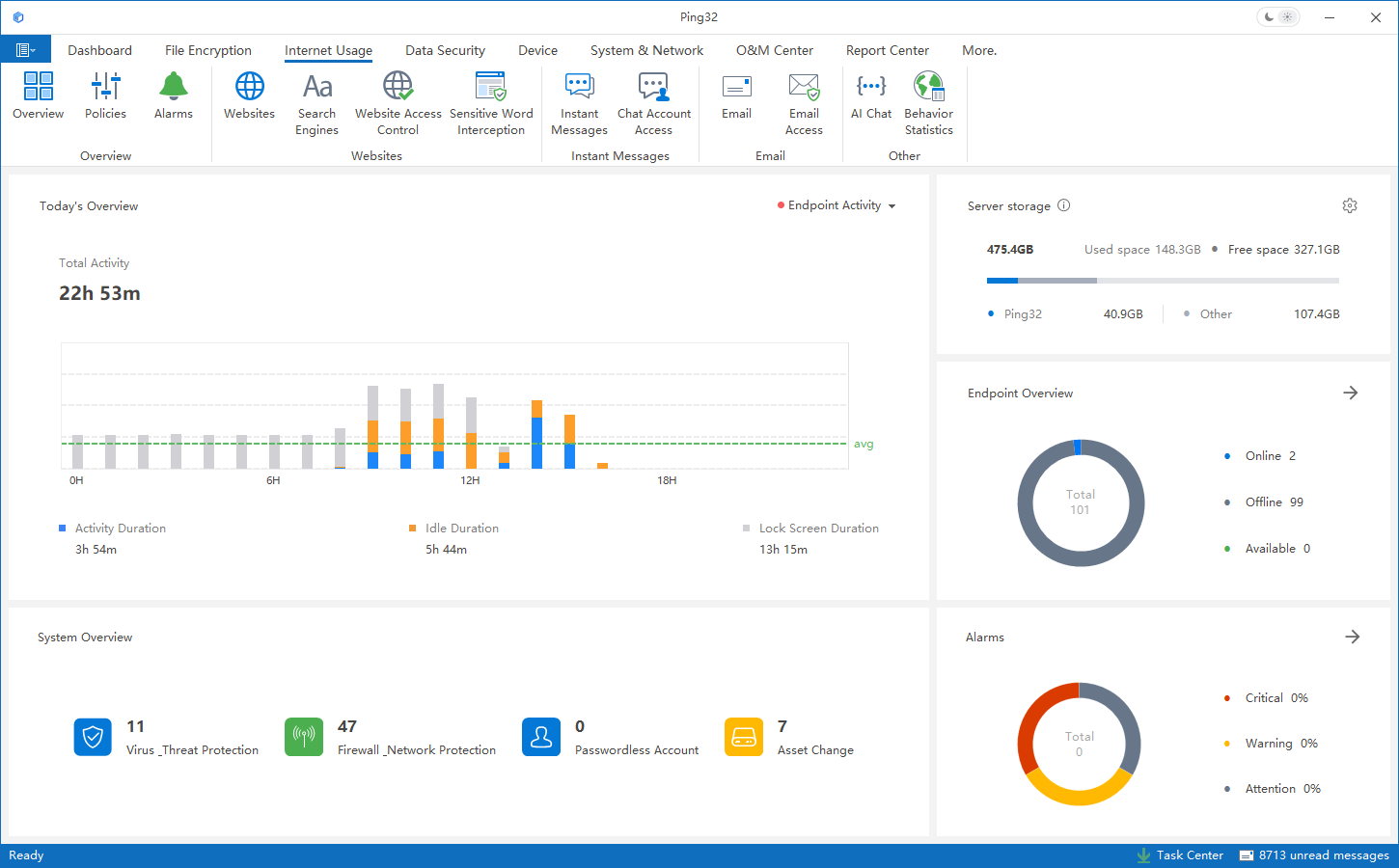
First, open the Ping32 Dashboard, click the “Internet Usage” menu, and then select the “Policies” button.
2. Select Endpoint
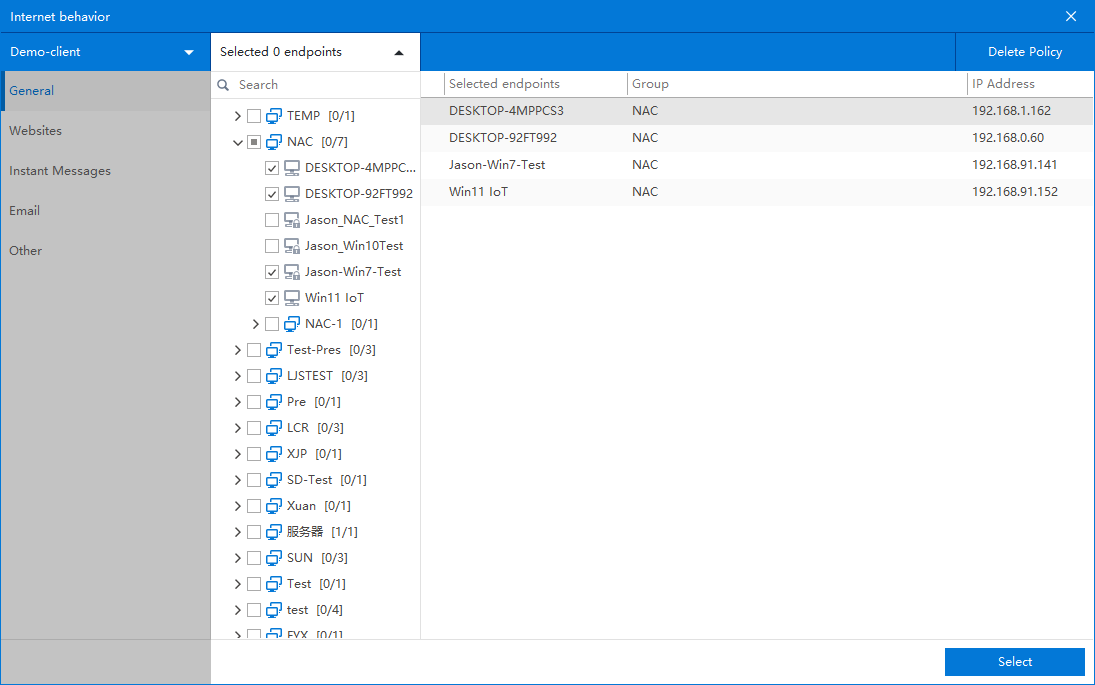
In the policy interface, click the “Select Endpoint” button to choose the endpoint users to which the policy will be applied.
3. Enable Policy
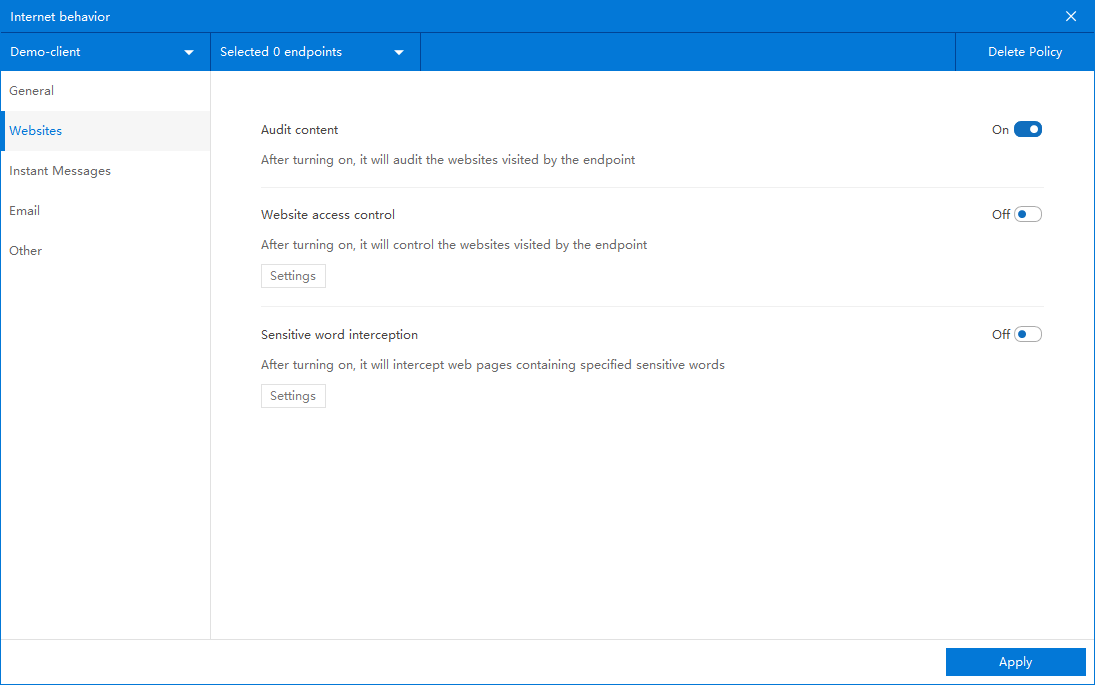
Click the “Website” menu. You will see the policies related to website browsing. Each policy has a corresponding toggle switch. Turn on the switch for “Audit Content”.
4. Apply Policy
Finally, click the “Apply” button to push the policy. The website browsing audit policy will be successfully deployed.
5. View Audit Records
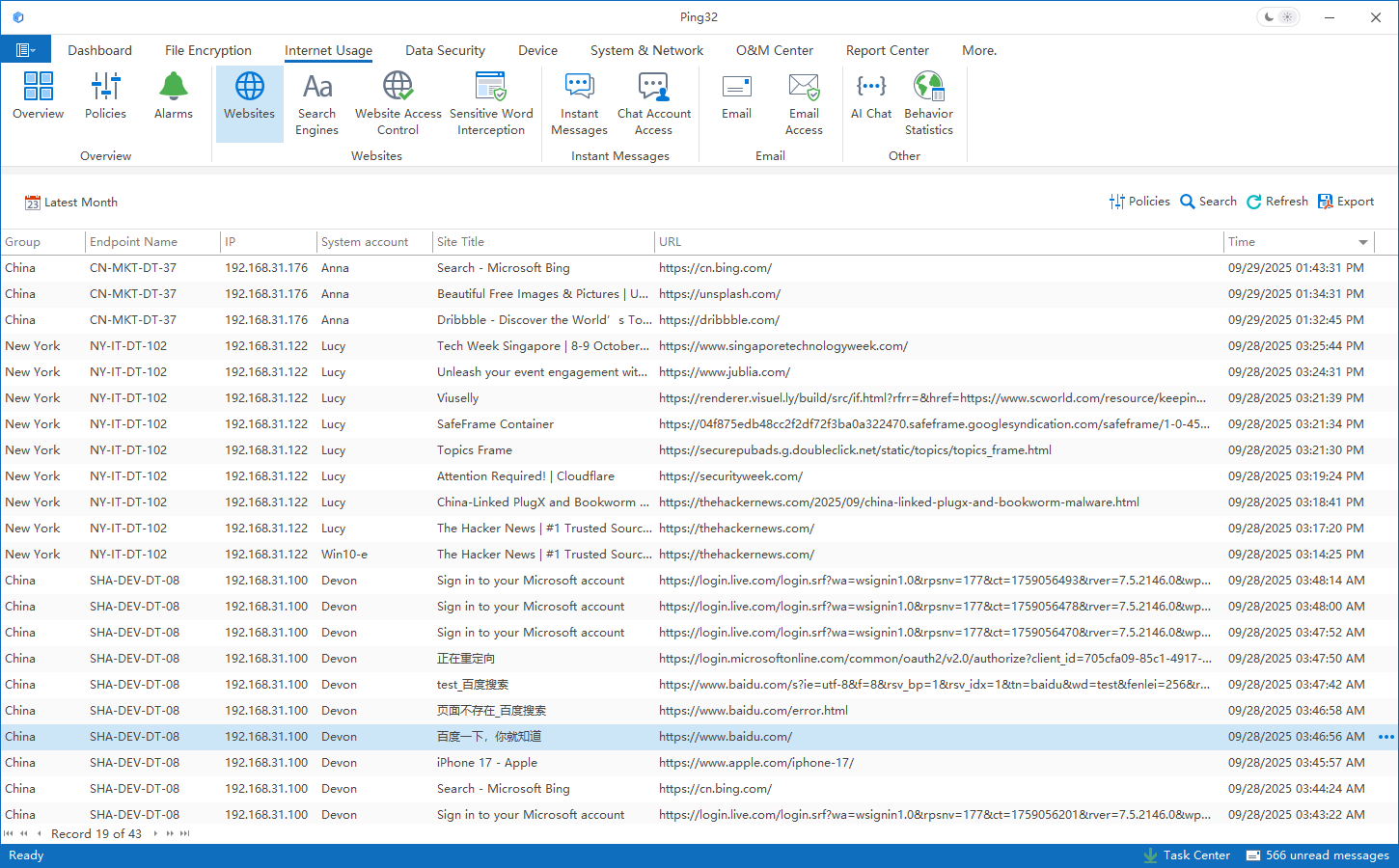
In the Internet Behavior interface, select the “Website Browsing” button to view the browsing records of the endpoints.
Updated


