How to Move an Endpoint to Another Group
After an endpoint comes online for the first time, administrators usually need to move it to the correct organizational or departmental group so that policies and permissions can be managed consistently. Ping32 supports both manual reassignment and automatic grouping based on rules. Method 1: Reassign a single endpoint from the endpoint list Applicable scenario: A […]
After an endpoint comes online for the first time, administrators usually need to move it to the correct organizational or departmental group so that policies and permissions can be managed consistently. Ping32 supports both
manual reassignmentand
automatic grouping based on rules.
Method 1: Reassign a single endpoint from the endpoint list
Applicable scenario: A small number of endpoint adjustments or temporary changes.
- Open Endpoint List.
- Right-click the target endpoint.
- Select Adjust Grouping.
- Select the target group and confirm.
Method 2: Use the advanced endpoint list for batch operations
Applicable scenario: Batch processing, initial onboarding, or cases where filtering/exporting is required before reassignment.
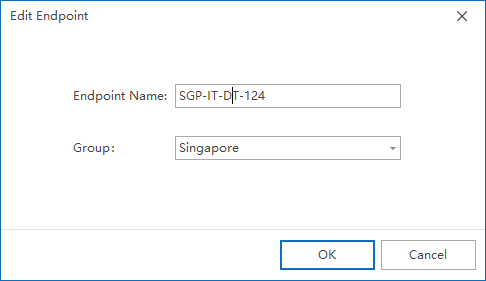
Reassign a single endpoint in the advanced list
- Right-click a blank area in Endpoint List.
- Select Advanced Endpoint List.
- In the advanced list, right-click the target endpoint row.
- Select Adjust Grouping.
- Select the target group and confirm.
Reassign multiple endpoints in batch
- In the advanced endpoint list, right-click an endpoint row and select Multiple Select.
- Check the endpoints that need to be reassigned.
- Click Endpoint Options -> Adjust Grouping.
- Select the target group and confirm.
Recommendation: Before a batch adjustment, filter or sort the advanced endpoint list by name, IP address, or logged-in user to reduce the risk of mistakes.
Reassign endpoints by importing a CSV file
You can also export a CSV file from the Management Console, edit the organizational structure information, and import the file back for batch updates.
Operating steps:
- Right-click a blank area in Endpoint List.
- Select Advanced Endpoint List.
- In the advanced list, click Endpoint Options -> Batch Modify Organizational Structure.
- Click Export to generate a CSV file.
- Modify the CSV file locally.
- Return to the Management Console, click Select File, and import the CSV file.
Note: Do not modify the CSV header fields. Changing the headers may cause the import to fail or the data to be mapped incorrectly.
Method 3: Automatically group endpoints by IP range
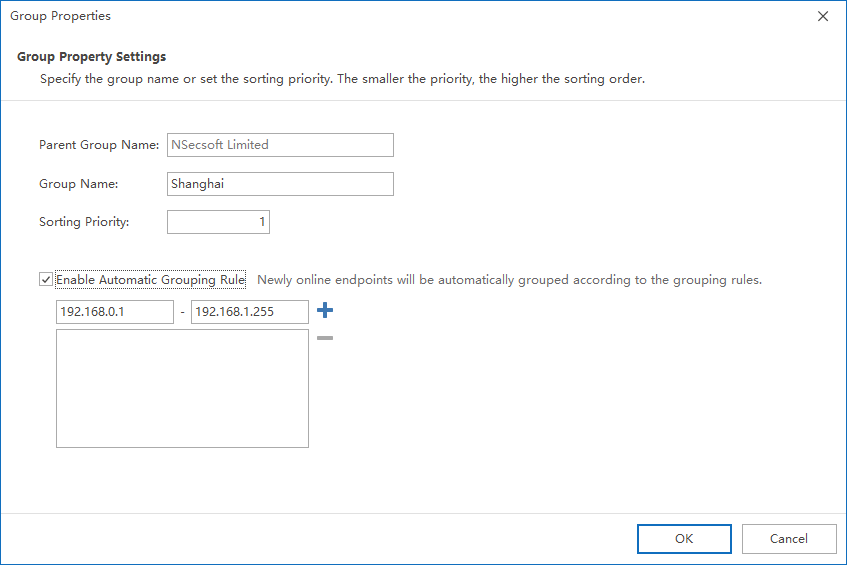
When the environment includes many endpoints and the network segments are clearly planned, use
automatic grouping by IP rangeto reduce manual maintenance.
- Right-click the target Group.
- Select Properties.
- Configure the grouping rule based on IP range.
- Save the settings. Endpoints will then be assigned automatically according to the configured IP range rule.
Updated


