How to Create an Approval Template
Ping32 provides a wealth of libraries and templates to meet the different needs of enterprises for data security and business process approval. Approval templates are used to standardize the business application process within the enterprise (such as document outgoing, decryption, etc.). By flexibly configuring approval nodes and personnel, refined permission management can be achieved. There […]
Ping32 provides a wealth of libraries and templates to meet the different needs of enterprises for data security and business process approval. Approval templates are used to standardize the business application process within the enterprise (such as document outgoing, decryption, etc.). By flexibly configuring approval nodes and personnel, refined permission management can be achieved.
There are two ways to open "Libraries & Templatess" in the Ping32 Management Console:
- Click the "Start" menu, then click "Libraries & Templatess".
- Click the "More Functions" menu, then click "Libraries & Templatess".
Enter the configuration entrance
In the main menu of the Ping32 Management Console, click:
Start->
Libraries & Templatess->
Approval Templates->
Add.
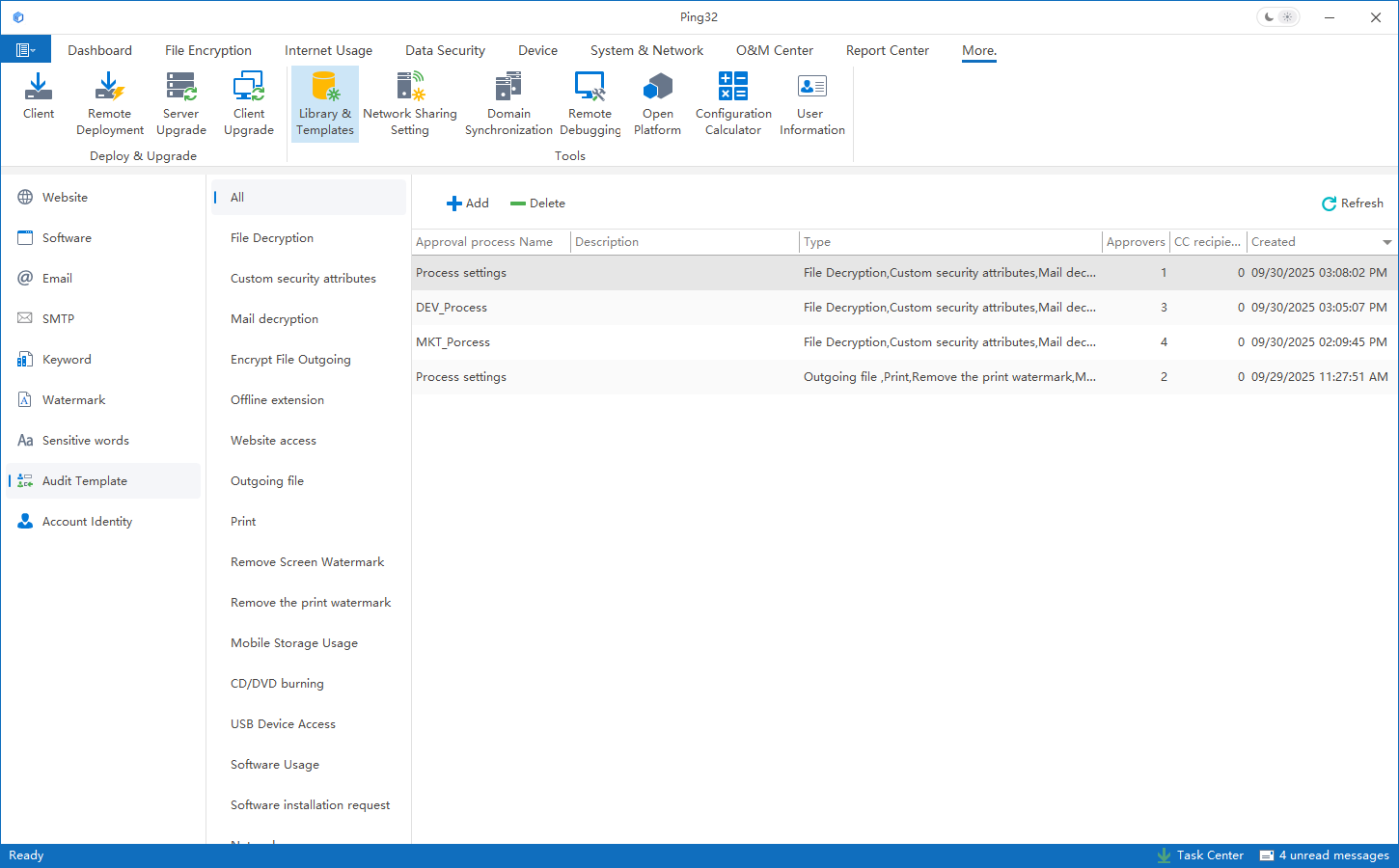
Create a template and select the type
Ping32 supports flexible business process approval and customized approval templates to meet the approval needs of different departments, different positions, and different business scenarios. Approval templates are divided into two types: general and encrypted. Approval templates can be added in advance to facilitate selection when needed.
| Type of use | Applicable scenarios | Specific functions included |
|---|---|---|
| General | Basic behavioral compliance approval | Website access application, file outgoing, printing, printing watermark removal, mobile storage use, optical drive burning application, USB device use application, software trial application, software installation application, network access application. |
| Encryption | Special approval for document encryption | File decryption, adjustment of security attributes, email decryption, outgoing encrypted files, off-grid time extension. |
Design approval node
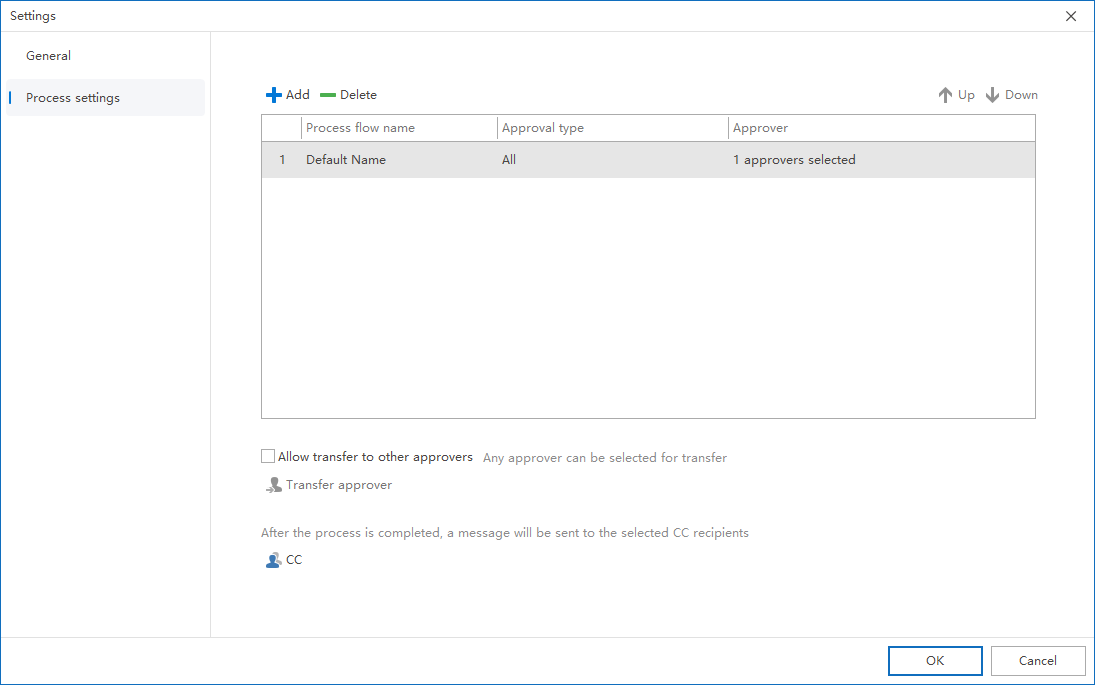
1. Click
Process Settings->
Addto add a new approval link.
2. Setting link name: It is recommended to name it by role (such as "Department Manager Review" or "Administrative Filing").
3. Specify Approver: Click
Addand check the person in the list:
-
- Administrator: Backstage manager.
- End User: Employees who have installed the endpoint agent.
Configure decision logic (countersign/or sign)
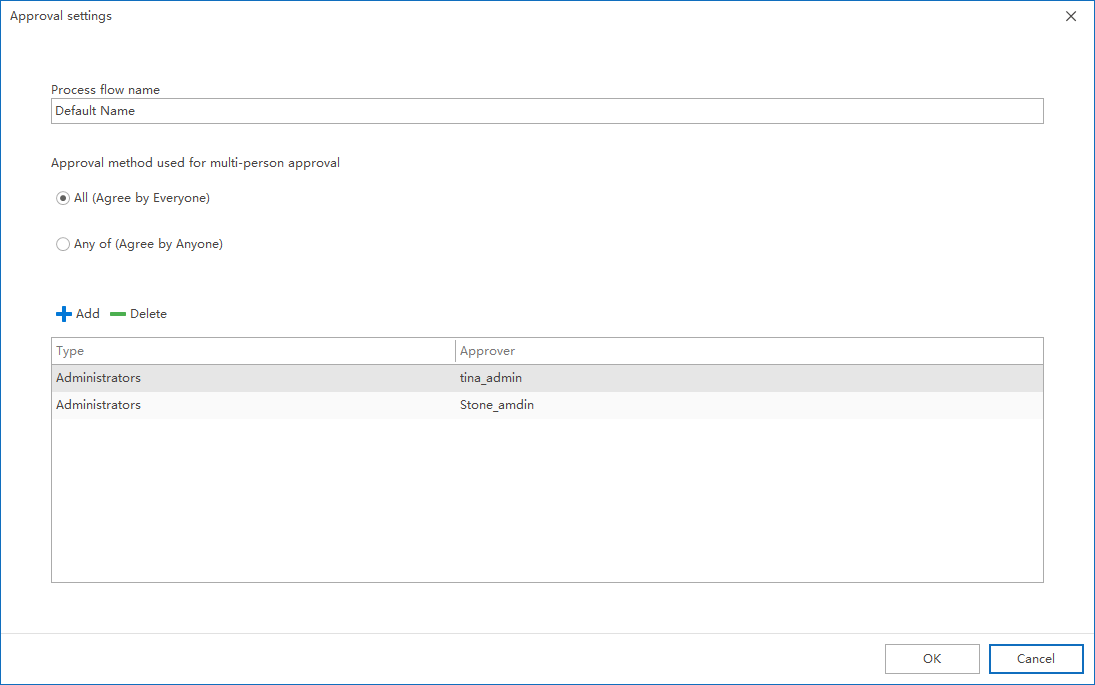
According to the rigor of the business, set the passing rules for this link:
- Countersignature: All **approvers in this link need to agree before the approval is passed.
- Or sign: Only any** approver agrees to proceed to the next step.
Multi-level approval and transfer
If the process involves multiple levels, you can:
- Add multi-level process: Continue to click Add, and the system will perform approval in a top-down order.
- Turn on transfer: Allow the approver to transfer the application to others for processing under special circumstances.
TipConfiguration points:The approval process requires at least one link and one approver.After the configuration is completed, please click OK to save, otherwise the settings will not take effect.
After configuring the template, you need to reference this template in the corresponding
policy settingsbefore the approval process will officially take effect.
Updated


