Activate Ping32
First, this is an activation tutorial for Ping32, let's go!
1、Login
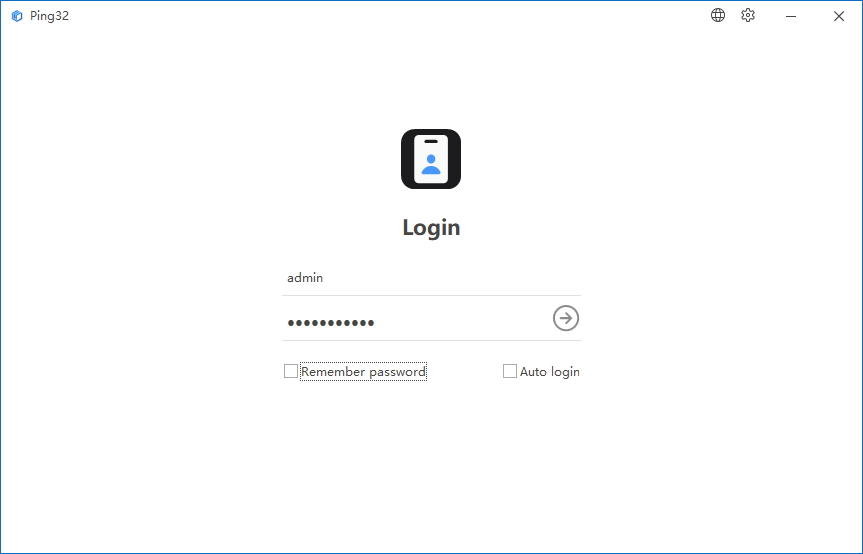
After installing the server and console correctly, double-click the "Ping32 Terminal Security Management System" icon on the desktop to launch the console. In the login interface, click the settings button at the top right corner to configure the server IP (configuration is unnecessary for the server's local console).
After setup, enter the username and password (default initial username and password are both "admin"), and click login to access the system. Be sure to change the initial password immediately after logging in. If you select "Remember Password", you won't need to enter it again when you next open the console login interface; selecting "Auto Login" will automatically log in to the main interface the next time the console is opened.
2、Activation
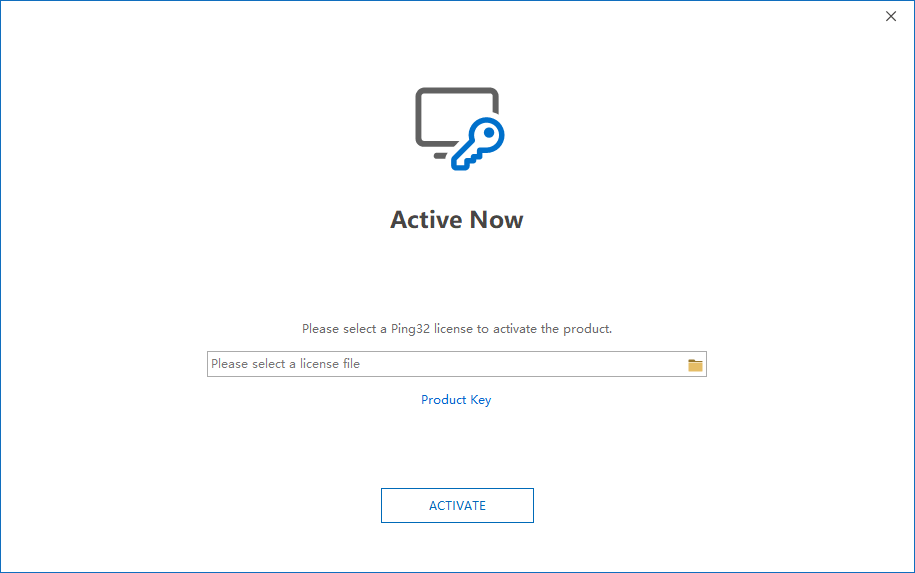
For first-time use, the product must be activated. Click "Get Application Code", copy the code, and send it to the dealer for license authorization (either hard or soft authorization). If you already have a license, you can directly select it for activation.
Note:
- If the first four digits of the application code are REQ1, it is a soft authorization;
- If the first four digits of the application code are REQ2, it is a hard authorization;
- If the first four digits of the application code are REQ0, the code was not recognized correctly, and you need to obtain it again.
Updated


