As more critical business information is viewed directly on employee screens, the screen itself has become a high-risk surface for data leakage. Design drawings, source code, customer records, financial statements, HR files, bid materials, and draft contracts do not always leave the company first as exported files. In many real incidents, they are exposed on a monitor first, then captured through screenshots, phone photography, remote meeting recording, chat-based image sharing, or other visual channels. In today’s environment of hybrid work, browser-based business systems, remote collaboration, and increasingly fragmented workflows, an organization that only focuses on file encryption and outbound file monitoring can still lose control at the screen layer, where sensitive content is visible, easy to copy, and difficult to trace after the fact.
Many organizations still frame screen leakage as a simple “disable screenshots” problem, but the operational reality is broader than that. Employees may not rely on the operating system’s built-in screenshot function. They may use a mobile phone camera, a third-party capture tool, a remote assistance session, a recorded online meeting, or even a print-preview workflow to preserve a sensitive screen. That is why watermarking should not be treated as decorative text overlaid on a display. Its real function is to make sensitive content traceable before it leaves the controlled environment. For a serious corporate security strategy, Ping32 matters here not because it adds text to a screen, but because it helps turn visible business interfaces into managed, attributable, and auditable surfaces. Ping32 does this through a combination of full-screen watermarking, specific-window watermarking, screenshot auditing, and process-based screenshot restrictions, rather than through a single blunt control.
The Hard Part of Protecting Sensitive Screens Is Not the Content but the Exposure Boundary
Enterprises struggle with screen-based leakage because sensitive information is spread across many systems and many viewing contexts. A finance employee may open cost data in ERP. A developer may review CAD drawings or source code in an editor. A salesperson may access customer information in CRM or enterprise messaging tools. On the surface, these are ordinary viewing actions. In practice, they are moments when confidential information is exposed on a device display. If no visible identifier exists on that screen, a leaked image may later prove that data was exposed, but it may still be difficult to determine which endpoint displayed it, which user was responsible, and when the exposure happened.
The challenge becomes more serious because different roles require different controls. Some organizations want a persistent identity marker across the entire desktop for high-risk users. Others only want visible controls inside a few critical applications so that normal office work is not disrupted. In some cases, the company does not want to block every screenshot globally, but it does want to leave evidence when screenshots happen, watermark those captures, or black out screenshots that include a specific process. In other words, protecting sensitive screens requires a layered model: global visual marking, targeted visual marking, screenshot evidence, and process-specific restriction. Ping32 is valuable because it brings these controls together inside the Screen Security policy path, allowing administrators to design controls based on role, application, and risk level instead of choosing between total openness and total shutdown.
Enterprises Need More Than Watermarks; They Need a Screen Governance Model That Connects Visibility, Audit, and Restriction
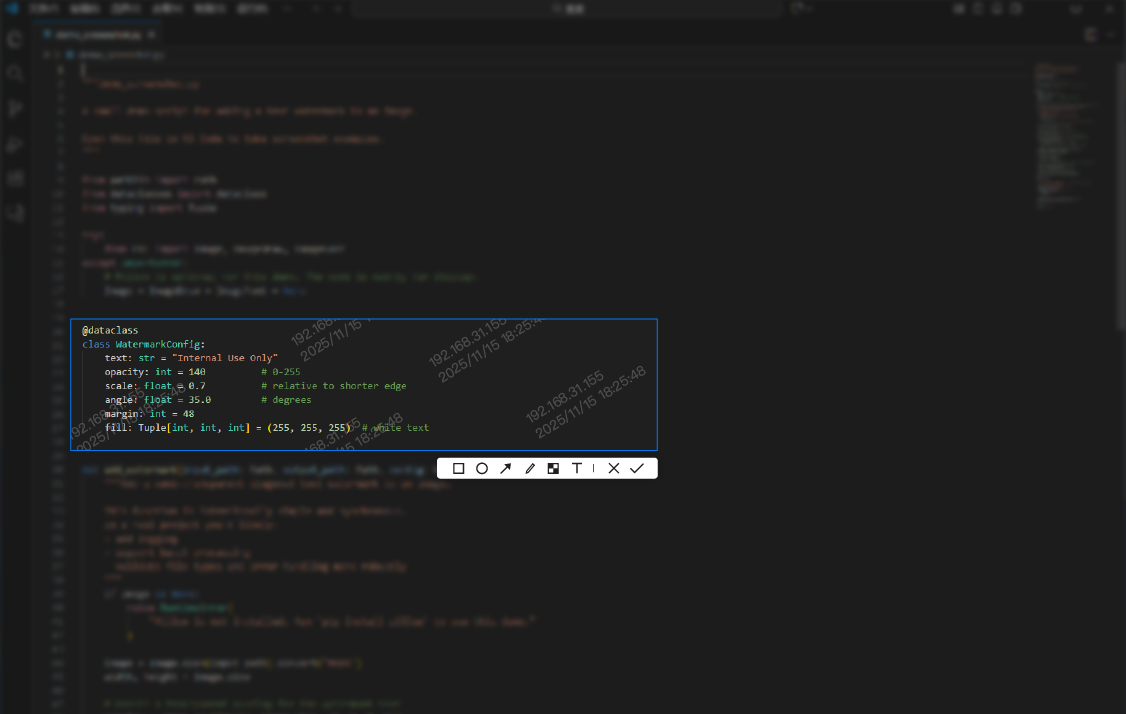
One of the most common mistakes in screen protection programs is to assume that watermarking alone is enough. A visible identifier does increase accountability, but it does not by itself tell an enterprise who took screenshots, which applications require stronger protection, or which captured images are relevant to an incident. A more mature approach is to combine watermarking with screenshot audit, intelligent screenshot review, screenshot blocking, and process-based capture restrictions. In that model, continuous Screen Watermark and Window Watermark controls make the interface attributable, while Screenshot Control determines whether screen capture behavior should be recorded, analyzed, or blocked.
This is where Ping32 should be understood as more than a visual overlay feature. If an enterprise wants visible attribution across an endpoint, Ping32 can deploy Screen Watermark. If it wants controls only for ERP, CAD, OA, finance software, source-code editors, or other high-value windows, Ping32 can deploy Window Watermark and bind it to selected windows through Display Window Settings. If the enterprise is worried that users may still capture or preserve the screen, Ping32 can enable Screenshot Record, Intelligent Analysis, Prohibit Screenshot, Prohibit Specified Processes Being Screen Captured, and Watermark Settings under Screenshot Control. This makes it possible to govern sensitive screens through one coordinated policy structure rather than through disconnected tools and manual checks.
In practice, administrators should first decide whether they need continuous attribution across the full screen or only within selected business applications. The first model is more appropriate for high-risk roles, shared office areas, remote work endpoints, and environments where phone photography is hard to prevent. The second model is better when the organization only needs to protect a few business systems and does not want to affect ordinary office software. Based on the Ping32 handbook, the implementation path can be built as follows.
1. Enable the Screen Watermark Policy
Prepare the appropriate watermark template and deploy Screen Watermark first. In Ping32, full-screen watermarking requires a usable screen watermark template to exist before the policy is applied. Once the template is ready, go to Data Security → Policy, enter Screen Security, enable Screen Watermark, and open Parameter Settings. Select the required screen watermark template, confirm the configuration, verify the target endpoints that should receive the policy, and then click Apply. For roles that need a persistent visible identifier across the desktop or across all business interfaces, this is the most direct Ping32 configuration path. After rollout, open a typical business interface on a test endpoint and verify whether the watermark is displayed according to the template, whether the displayed information is clear, and whether it avoids blocking critical interface areas. At this stage, Ping32 is addressing the basic governance requirement that any sensitive screen a user can see should already carry traceable identity information.
2. Configure the Window Watermark Policy
If the enterprise only wants to mark selected business windows, use Window Watermark instead. Under Data Security → Policy → Screen Security, enable Window Watermark and open Parameter Settings. Select the required window watermark template, then click Display Window Settings and choose the application windows that should display the watermark. After that, return to the policy page, verify the target endpoints, and click Apply. The key here is not merely selecting a template; it is maintaining the Display Window Settings with precision. If the screens that need protection are concentrated in ERP, PLM, CAD, OA, finance systems, or browser-based internal applications, Ping32 window watermarking is usually more practical than a desktop-wide overlay because it concentrates visible accountability where the value and risk are highest. After the policy is distributed, administrators should open the selected windows on a test machine and confirm that the watermark appears only in those windows and behaves correctly when the window is maximized, resized, split, or used on multiple monitors.
3. Enable Screenshot Blocking and Screenshot Control
If the organization believes that persistent watermarking alone does not create enough control, it should enable Screenshot Control at the same time. Go to the Data Security module, open Policy, choose the relevant endpoints, enter Screen Security, and enable Screenshot Control. Then open Parameter Settings and select the functions that match the organization’s control model. If the priority is evidence retention, enable Screenshot Record. If the enterprise wants better visibility into questionable capture behavior, enable Intelligent Analysis. If screenshots of sensitive interfaces must be blocked, enable Prohibit Screenshot. If only specific applications require blacked-out screenshots, enable Prohibit Specified Processes Being Screen Captured. Administrators can also enable Watermark Settings here. The handbook specifically notes that screenshot watermarking currently applies only to the client software’s built-in screenshot tool. That distinction matters because Ping32 is not simply repeating always-on watermarking in this step; it is giving administrators a way to decide whether screen capture events should be watermarked, recorded, or blocked when they occur.
4. Run Screenshot Auditing and Effect Verification
After configuration, the verification path must be operational as well. To review screenshot audit results, administrators can go to Data Security → Screen Record → Screenshot Audit and inspect the endpoint’s screenshot operation records. To review intelligent screenshot evidence, they can go to Data Security → Screen Record and double-click the target endpoint to inspect its intelligent screenshot records. If Intelligent Analysis has been enabled, they can also use Aggregate Search to search screenshot content by keyword. This stage is critical because screen governance often fails not at policy definition, but at verification. A policy that has been pushed but cannot be validated is operationally weak. Ping32 ties watermark display, screenshot evidence, search, and restriction into one continuous management path so that administrators can verify not only that the policy exists, but also that it is changing endpoint behavior in the intended way.
5. Choose the Right Alternative and Combined Control Path
Finally, administrators should choose the right control path instead of trying to force every requirement into one setting. If the requirement is visible identity information across every screen, Screen Watermark should be the primary control. If the requirement is precise protection for a handful of critical business applications, Window Watermark should be prioritized and the selected windows should be maintained carefully. If the actual need is not simply to show attribution but to reduce the ability to preserve sensitive screens as images, then Prohibit Screenshot or Prohibit Specified Processes Being Screen Captured should be combined with watermarking. Ping32 is valuable because it does not force one pattern on every enterprise. It provides several layers that can be combined based on business context, role sensitivity, and operational tolerance.
The Product Value of Ping32 in Sensitive Screen Governance Lies in Traceability and Control Working Together
From a governance perspective, Ping32 first solves the attribution problem. In many leakage cases, an organization can see the leaked image but cannot reliably determine which endpoint originally displayed the content or which user was responsible. With Screen Watermark and Window Watermark, Ping32 allows visible identity markers, timestamps, or other template fields to stay attached to the sensitive interface, making anonymous redistribution harder and later investigation more efficient.
Second, Ping32 solves the problem of controls that exist on paper but are difficult to validate. Many endpoint protections look complete until a team tries to verify what was actually captured, which screenshots were taken, or whether a restricted interface was protected as expected. Ping32 allows administrators to combine watermark deployment with Screenshot Audit, intelligent screenshot records, and keyword-based search. That means the platform is not only marking a display; it is supporting the operational review of what happened around that display.
Third, Ping32 reduces the cost of overbroad controls. Most enterprises do not want to burden every ordinary office interface just to protect a small number of critical systems. Through Window Watermark and Prohibit Specified Processes Being Screen Captured, Ping32 allows controls to focus on high-value windows and high-risk roles. That matters in development, finance, HR, legal, customer support review, and other environments where usability still matters alongside security.
Finally, Ping32 helps enterprises turn sensitive screen protection from a static configuration into an operational policy. Administrators can continuously adjust the combination of watermarking, audit, and blocking based on endpoint type, application landscape, job role, and capture behavior. In a business environment where the value of what is visible on screen keeps increasing, that is far more useful than a standalone overlay feature. It is a practical way to make sensitive interfaces governed, attributable, and reviewable over time.
FAQ
Q1: How should an enterprise choose between Screen Watermark and Window Watermark?
If the goal is continuous attribution across the entire desktop or across all business interfaces, Ping32 Screen Watermark is the better fit. If the goal is to mark only selected systems such as ERP, CAD, OA, or finance software without affecting normal office work, Ping32 Window Watermark should be used together with carefully maintained Display Window Settings.
Q2: If watermarking is enabled, is screenshot control still necessary?
Yes. In Ping32, watermarking mainly increases traceability. It does not automatically replace screenshot evidence retention or screenshot blocking. If the enterprise is concerned about sensitive interfaces being preserved as images, it should still use Screenshot Record, Intelligent Analysis, Prohibit Screenshot, or Prohibit Specified Processes Being Screen Captured as part of the same control model.
Q3: Will watermarking interfere with normal user work?
That depends on the template content and the scope of deployment. Ping32 supports both full-screen and selected-window controls, so the practical approach is to test display position, readability, and interface coverage on pilot endpoints first, then expand gradually to high-risk roles and critical systems instead of rolling out a single aggressive configuration to every user at once.





 Contact


 13 min