Many organizations already manage email attachments, file transfers, cloud uploads, USB use, and document permissions. What is often left under-governed is the sensitive data that appears directly on the screen. Pricing sheets, design drawings, customer lists, financial dashboards, code-related interfaces, approval pages, and decrypted documents may exist only briefly as on-screen content. The moment an employee captures that screen, the data leaves its original permission boundary and becomes a new image asset that can be forwarded, edited, stored, or retransmitted.
That is why screenshot leakage is not a minor side issue. The risk does not come from the screenshot tool alone. It comes from how close screen capture is to ordinary office behavior. Whether the user relies on an OS-native shortcut or a third-party capture utility, it takes almost no effort to turn a controlled business screen into a portable image. In practice, the real management problem is not teaching employees that screenshots can be risky. The real problem is whether the enterprise can stop, record, and trace the action at the endpoint.
This is where Ping32 becomes meaningful. Ping32 allows the enterprise to move screenshot governance from policy language into actual endpoint control. Once Ping32 is allowed to govern screenshot behavior on the terminal, the organization no longer depends only on reminders, training, or post-incident reviews. It gains an execution layer.
Policy language alone rarely stops operational leakage
Most enterprises already have rules that say employees must not capture sensitive screens. The weakness is not in the wording of the rule. The weakness is that the rule often lacks an endpoint enforcement mechanism. In fast-moving departments, screenshots are easily justified as “temporary sharing,” “faster clarification,” or “just for internal use.” Without direct endpoint control, that convenience becomes a silent leakage path.
The issue therefore needs to be defined correctly. The enterprise is not only asking whether employees may capture screens. It is asking whether sensitive screen content can be copied out of a controlled environment, whether the action can be discovered quickly, and whether responsibility can be traced afterwards. Once the problem is framed that way, the governance object is no longer a shortcut key. It is the full screen-copy chain.
What really needs to be governed is the copy path of sensitive screens
The key risk is converting a controlled interface into an uncontrolled image
As long as sensitive information remains inside a controlled application, the organization still has multiple layers of governance: account permissions, access logs, workflow approval, encryption, and business-system boundaries. Once a screenshot is taken, that context is broken. The information becomes a static image that can move through chat tools, email, documentation, print flows, or even secondary photography. Screenshot behavior is therefore not the end of the risk; it is the beginning of a broader leakage chain.
For that reason, stopping screenshot leakage requires more than a single “disable screenshot” command. A workable control model must combine prevention, auditing, visual deterrence, and later searchability. Ping32 is valuable here because it supports those layers as part of one endpoint governance path rather than as isolated controls.
A workable model must combine blocking, auditing, deterrence, and business exceptions
An all-or-nothing model usually fails in practice. If the enterprise blocks screenshots everywhere without considering job requirements, business teams will resist the policy or work around it. If the enterprise leaves screenshots broadly available, high-sensitivity pages remain exposed. The sustainable approach is layered governance.
With Ping32, highly sensitive screens can be governed with stronger controls such as screenshot blocking and process-level screenshot protection. Less sensitive daily office scenarios can be governed with recording, intelligent analysis, and watermarking. That distinction matters because real governance is not only about prohibition. It is about making sure the organization can explain what was allowed, what was blocked, what was recorded, and what remains traceable.
That naturally leads to the operational section. The third section of the article cannot stay at the level of feature listing. It has to show how Ping32 turns screenshot governance into an executable control chain.
Turning screenshot leakage into a controllable chain with Ping32
Start by defining which terminals and which screens need stronger control
Before configuring Ping32, the enterprise should classify the target terminals. Finance devices, R&D devices, executive approval devices, and endpoints that display customer-sensitive data usually need stronger controls. In those environments, Ping32 should treat screenshot blocking as the primary measure. General office terminals can still be managed through audit, intelligent screen capture, and watermark-based deterrence, depending on operational requirements.
This classification step matters because Ping32 policies should not be spread blindly. The goal is to apply strict controls to the terminals and business contexts where sensitive screen exposure creates a real leakage path.
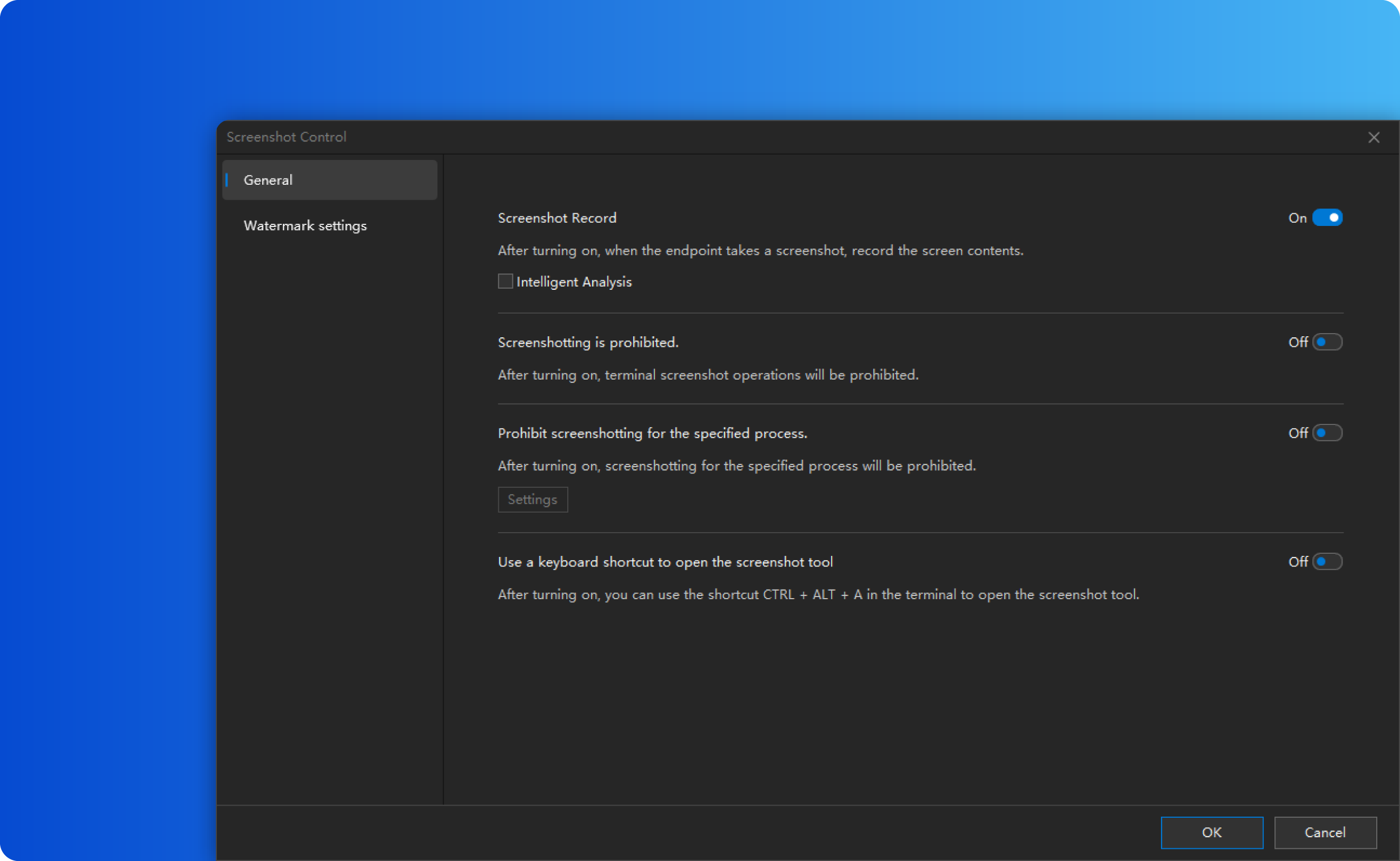
Step 1: Enable screenshot control in Screen Security
In the Ping32 console, go to the Data Security module, enter Policy, and open the data security policy settings for the target terminals. Then enter Screen Security and enable the Screenshot Control policy.
This step is the entry point of the entire control chain. Without it, Ping32 cannot unify screenshot blocking, screenshot recording, intelligent analysis, and watermark-related behavior inside one policy. The administrator should also verify at this stage which endpoints, endpoint groups, or departments will receive the policy, because an incorrectly scoped policy is one of the most common reasons why endpoint security controls appear to “exist” but do not actually work.
Step 2: In parameter settings, configure blocking, recording, and analysis together
After Screenshot Control is enabled, open Parameter Settings and configure the key items together. Based on the available product documentation, the relevant options include at least:
– Screenshot Record
– Intelligent Analysis
– Forbid Screenshot
– Forbid Specified Processes from Being Captured
– Watermark Settings
If the primary objective is to stop employees from extracting sensitive screen content, Ping32 should first enable Forbid Screenshot. Once this option is active, a screenshot attempt results in a fully black output instead of a usable image. That cuts off the most direct copy path.
However, Ping32 should not stop there. It is advisable to enable Screenshot Record and Intelligent Analysis at the same time. That way, the enterprise does not only block the action; it also keeps a management trail for later verification. If the organization cannot block every screenshot globally, Ping32 can still protect key business interfaces by enabling process-specific screenshot blocking. In practice, that is often a better fit for systems that contain highly sensitive pages but coexist with general office tools on the same terminal.
Step 3: Apply the policy and verify real endpoint effect
After configuration is complete, confirm the target terminals and click Apply to deliver the policy. This should not be treated as the end of the work. Ping32 must be validated on actual endpoints. At a minimum, the administrator should test two things:
– Attempt a screenshot in a normal desktop context and confirm whether Ping32 blocks it or records it.
– Attempt a screenshot inside the protected business application and confirm whether process-specific blocking takes effect.
If the organization uses full screenshot blocking, Ping32 should cause the captured result to appear black rather than usable. If the organization uses process-level protection, Ping32 should at least prevent capture of the chosen sensitive application while leaving unrelated office use under the expected policy scope.
This validation step is important because the true question is not whether Ping32 was configured, but whether Ping32 is governing the exact screens the business wants to protect.
Step 4: Use screenshot audit and intelligent screenshot records to confirm governance outcomes
Once the policy is live, the administrator should move to result verification. According to the available product material, Ping32 allows the administrator to go to Data Security, then Screen Records, and then Screenshot Audit to review screenshot-related audit records on the terminal side.
If the organization also uses intelligent screenshot features, Ping32 can provide intelligent screenshot records for later review. Here, storage location matters. If the images are stored on the terminal, visibility depends more on client availability. If Ping32 stores them on the server, the administrator can inspect the records more consistently even when the client is not continuously online.
This is why Ping32 should be viewed as more than a block switch. Ping32 can create a usable audit path. In sensitive-screen governance, an organization needs to know not only whether a control exists, but whether it can later verify attempts, patterns, and exceptions.
Step 5: Add screen and window watermarks for deterrence and accountability
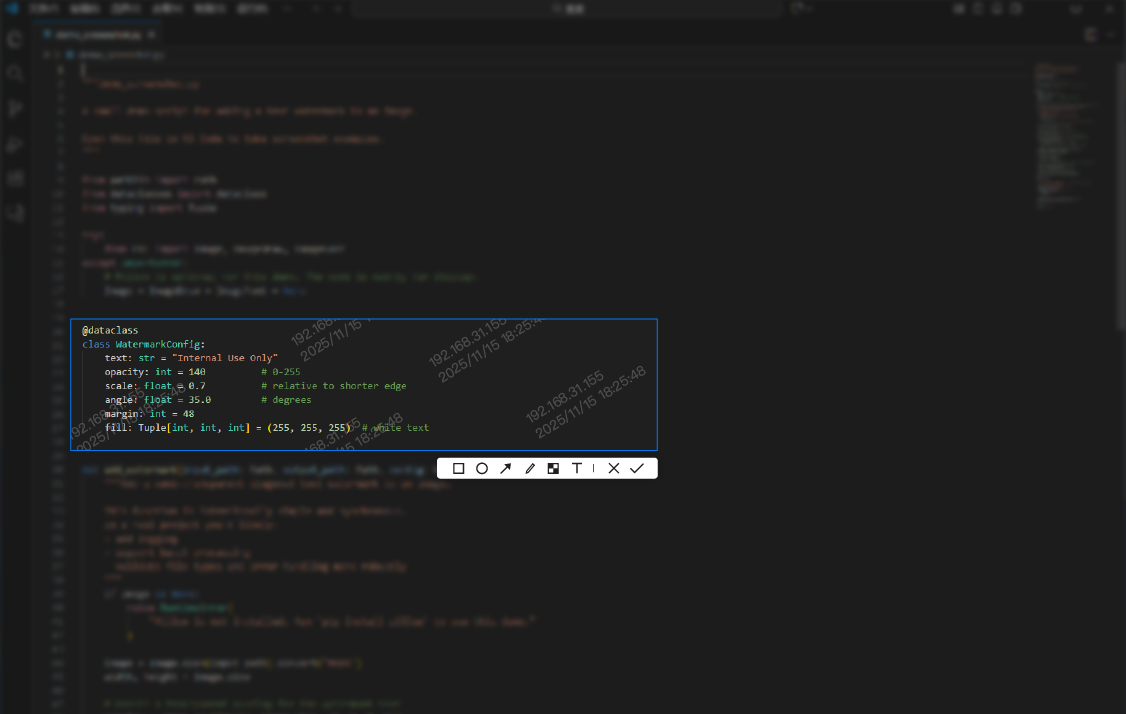
If the enterprise wants stronger deterrence, Ping32 should add visible accountability to the screen itself. Ping32 supports both Screen Watermark and Window Watermark policies in Screen Security, and those functions are well suited to environments where visual deterrence and later accountability matter as much as the block itself.
The prerequisite is to create a watermark template first. Based on the available documentation, this can be done from the library and template area in the console. The administrator can create a template for screen watermark or window watermark use and embed dynamic elements such as username, terminal IP, computer name, and current time. This is important because Ping32 is not merely placing decorative marks on the display. It is binding the screen view to identity and time context.
After the template is ready, return to Data Security, Policy, Screen Security in Ping32, enable Screen Watermark or Window Watermark, open Parameter Settings, and select the template. For Window Watermark, Ping32 also requires the administrator to choose which windows will display the watermark. After confirmation, the policy can be applied to the target terminals.
This layer is especially effective when the business cannot fully forbid every screenshot in every context but still needs to make sensitive viewing behavior visible and accountable.
Step 6: Store intelligent screenshots on the server and enable aggregate search when needed
For organizations that need stronger evidence retention, Ping32 can extend from simple screenshot control into longer-term traceability. In Screen Security, the administrator can enable Intelligent Screenshot, open the policy settings, and set the storage location to Server. That makes record availability more stable and less dependent on endpoint state.
If the environment also deploys an OCR server, Ping32 can enable Intelligent Analysis so that relevant screenshot images become searchable through Aggregate Search. This is operationally useful because the security team can search by keyword rather than only by terminal. In other words, Ping32 moves from endpoint blocking into indexed evidence retention.
This is not always the first control an enterprise needs to deploy, but for high-sensitivity environments it materially improves post-event analysis and governance confidence.
Exception handling: do not govern all screens at the same intensity
The most common mistake in screenshot governance is drifting into one of two extremes: no control at all, or a blanket block on everything. A more durable Ping32 strategy is tiered governance.
For highly sensitive screens, Ping32 should combine Forbid Screenshot, process-specific protection, watermarking, and audit. For ordinary office environments, Ping32 can rely more on screenshot recording, intelligent analysis, and watermarking. The point is not to weaken control. The point is to align Ping32 policy strength with business sensitivity so that the control remains enforceable and sustainable.
Ping32 solves the endpoint-side problem of screen-copy governance. It does not replace role classification, confidentiality classification, or approval responsibility. But it does provide the execution layer that makes those governance ideas real on terminals.
Moving screenshot leakage governance from reminders to control
Ping32 is strongest where endpoint behavior must actually be governed
For this scenario, Ping32 delivers value in three concrete ways. First, Ping32 can directly govern whether screenshots are allowed at the endpoint. Second, Ping32 can combine blocking, auditing, intelligent records, watermarking, and server-side retention instead of forcing the enterprise to choose only one layer. Third, Ping32 allows more precise governance through process-level protection and watermark-driven deterrence rather than only broad all-or-nothing control.
That does not mean Ping32 replaces every governance layer in the organization. Role design, system permissions, data classification, and approval workflows still matter. But when those policies need to be translated into actual terminal behavior, Ping32 becomes the practical control layer that closes the gap between management intent and endpoint reality.
Final conclusion: Ping32 is most effective when blocking, auditing, and traceability are built together
If the goal is to stop employees from leaking sensitive screen data through screenshots, the enterprise should not rely on awareness campaigns alone. It should build an endpoint-side control chain in Ping32. A practical path is to enable screenshot control in Screen Security, use screenshot blocking as the primary control, apply process-specific protection where needed, and then reinforce that with Ping32 watermarking, intelligent screenshot records, server-side storage, and aggregate search where appropriate.
When Ping32 is used in that layered way, screenshot governance changes in character. It is no longer just a warning to employees. It becomes a managed process in which the action can be blocked, the attempt can be recorded, the screen can carry visible accountability, and the result can be reviewed later. For organizations trying to reduce screenshot-based leakage of sensitive screen data, Ping32 is not merely a supporting feature. It is a practical execution layer for real endpoint governance.





 Contact


 13 min