

For enterprises, prohibiting access to designated websi […]
For enterprises, prohibiting access to designated websites is usually not a simple matter of “blocking the website”, but to reduce irrelevant Internet access, illegal access, malicious website diversion, information leakage and compliance risks. By enabling Website Access Control in Browsing Websites through Ping32, administrators can fine-grained restrictions on the scope of employees’ access to websites based on business needs.
This capability is more suitable for three types of scenarios: first, blocking websites that are irrelevant to work and affecting efficiency in the long term; second, only allowing access to limited sites such as internal systems and designated business platforms; third, temporarily banning individual high-risk websites during a special governance period. No matter which method you choose, it is recommended to clearly define the control goals before deciding to use a blacklist or whitelist.
Before choosing a control idea, first distinguish between blacklist and whitelist
In Ping32, Website Access Control is usually used in two common ways:
- Blacklist: Suitable for the management mode of “allowed by default, only prohibiting some websites”. For example, blocking non-work-related or high-risk websites such as games, entertainment, shopping, gambling, agents, anonymous visits, etc.
- Whitelist: Suitable for strong control scenarios where “not allowed by default, only some websites are open”. For example, computer room duty endpoints, front desk shared computers, examination endpoints, confidential position endpoints, etc.
If there are many types of business websites and frequent changes, it is often easier to maintain using the blacklist first; if the endpoint has a single purpose and the access scope is fixed, the whitelist is more conducive to achieving strict control. Selection errors will directly affect subsequent maintenance costs, so it is recommended to classify them according to positions and scenarios before issuing corresponding strategies.
Prohibit access to specified websites through policies
1. Click Internet Behavior → Policy in the Ping32 Management Console to enter the Internet Behavior Policy Settings interface.
2. In the Internet Behavior Policy Settings interface, click Browse Websites, turn on Website Access Control, and click Parameter Settings to enter website management and control configuration.
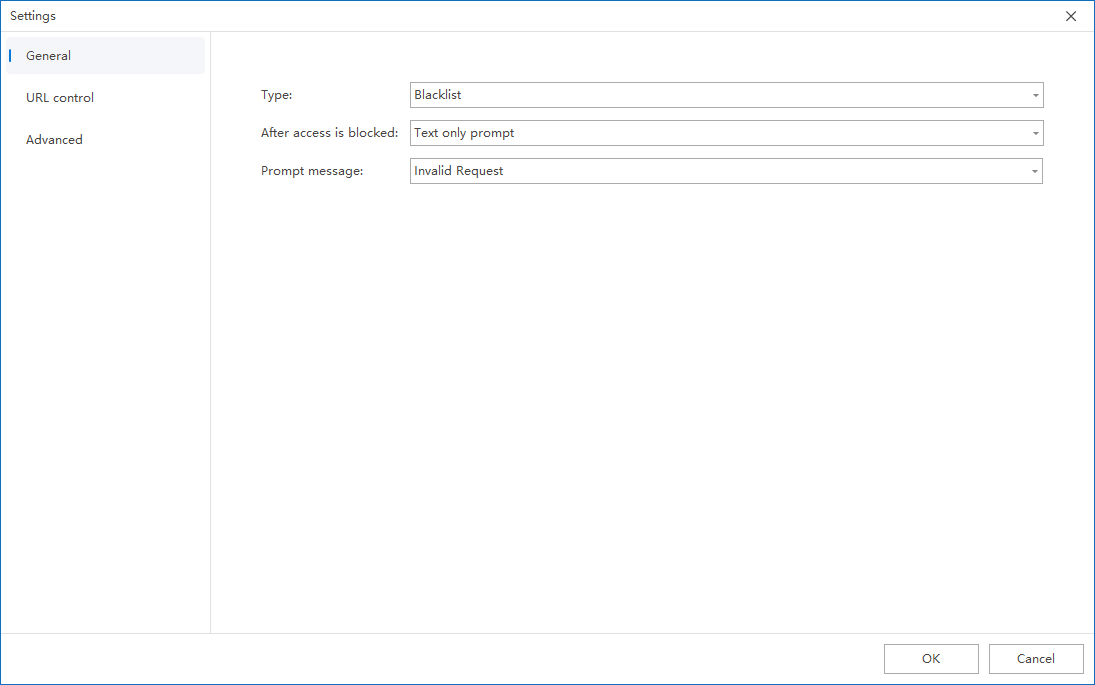
3. Set the website control type to Blacklist or Whitelist in General Settings:
- Blacklist: prohibit clients from accessing the URLs checked in website control
- Whitelist: Only allow clients to access the URLs checked in the website control
This step determines the control logic of the entire strategy. It is recommended not to mix understanding. The blacklist emphasizes “supplementary restrictions” and the whitelist emphasizes “clear release.” For enterprises that are still in the pilot stage, it is recommended to start with the blacklist to make it easier to observe the impact on the business.
4. Check the URLs that need to be controlled (blacklist or whitelist) in Website Control.
The key here is not “the more check boxes, the better”, but “whether the checked sites truly meet the governance objectives.” If it is a blacklist mode, you should focus on screening the sites that need to be restricted; if it is a whitelist mode, you should first confirm with the business department whether all necessary office websites have been covered to avoid affecting normal business access due to omissions.
5. After the policy setting is completed, confirm the policy application endpoint.
It is recommended to issue the information in batches according to departments, positions, office areas or risk levels. Especially in the whitelist mode, small-scale verification should be done first, and then the coverage should be gradually expanded.
6. After confirming the policy application endpoint, click Apply to prohibit employees from accessing the specified website.
Add the URL to the URL library (when it does not exist in the built-in URL library)
If the target website is not in the existing URL library, or the enterprise needs to manage custom addresses such as self-built sites, internal domain names, industry platforms, etc., the target domain name should be added to the URL library first, and then returned to the strategy to select and use it.
- Click Start → Library & Templates in the Ping32 Management Console to enter the library & template setting interface.
- Click Website to enter the URL library interface.
- Click Add to add the URL domain name to the URL library.
Notice:
- Just add the domain name without including prefixes such as
https://,wwwetc. - It is recommended to give priority to maintaining the main domain name, and then add subdomain names according to actual needs to avoid complicated subsequent maintenance due to too detailed entries.
- If there are a large number of business system domain names within the enterprise, it is recommended to group them in the library according to system categories, departments or purposes to facilitate subsequent reuse.
Validation verification and implementation suggestions
After the policy is issued, it is recommended to use a test endpoint that has been included in the policy scope to conduct a complete verification:
- Accessing a website that should be restricted.
- Observe whether the client can no longer access the website normally.
- Visit a website that should be allowed to access again to confirm that business access is not accidentally compromised.
- If necessary, you can cross-check whether the policy has taken effect as expected with the relevant records in the Internet Behavior module.
In actual implementation, the following experiences are usually more important:
- The blacklist mode is suitable for continuous maintenance; the whitelist mode is suitable for strong management and control of endpoints. It is not recommended to directly enable it on a large scale before combing the business website.
- If employees report that “some work websites cannot be opened” after the policy takes effect, prioritize checking whether they were missed to be added to the whitelist, or whether the relevant domain names were mistakenly added to the blacklist.
- If the policy seems to have been issued but you can still access the target website, check first: whether the target domain name has been correctly entered into the URL database, whether the policy has checked the corresponding URL, whether the policy application endpoint is correct, whether the endpoint is online and has received the latest policy.
By combining URL database maintenance and policy enforcement, Ping32’s website management can truly form a long-term mechanism that is “configurable, reusable, and verifiable” instead of a one-time temporary ban.

