

In data security governance scenarios, Screen recording […]
In data security governance scenarios, Screen recording is suitable for restoring employees’ endpoint operations during critical time periods, helping administrators to collect evidence and review interface behaviors before and after high-risk business processing, abnormal operations, and illegal outsourcing. Compared with relying solely on event logs, video records can supplement “what was actually displayed on the screen when the operation occurred”, so it is of higher value in event traceback, audit spot checks and dispute verification.
It is recommended that administrators clarify the application scope and storage period of the recording policy before officially enabling it. If an enterprise only wants to carry out key audits on finance, R&D, customer service agents or confidential endpoints, it can first conduct pilot verification on a small range of endpoints, and then gradually expand the scope of application; if it plans to retain recording data for a long time, it should prioritize the evaluation of server storage capacity, network bandwidth and subsequent review frequency to avoid improper storage policy settings that affect the operation effect.
Recommended Checks Before Enabling
- Whether the range of endpoints that require recording has been clarified to avoid issuing high-intensity recording policies to all endpoints from the beginning.
- Whether the storage location and retention days of video files have been planned to facilitate subsequent unified auditing and centralized storage.
- Is there a scenario where recording is only required when the specified business software is running? If so, it is recommended to combine triggered recording to control the collection range.
Policy configuration steps
1. Click Data Security → Policy on the Ping32 Management Console to enter the data security policy settings page.
2. In the data security policy settings page, click Screen Security to turn on Screen Recording.
3. Click Parameter Settings to configure the screen recording audit policy:
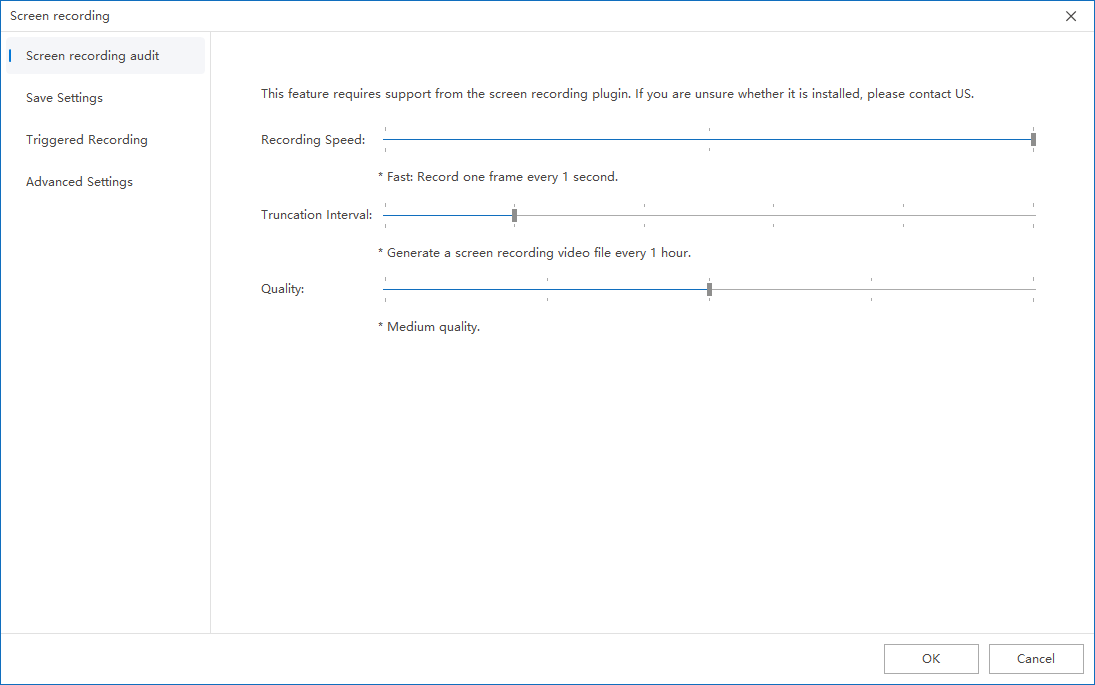
Click Video Audit: Set the recording speed, truncation interval, and definition.
Click Save Settings: Set the number of days and storage location for recording recordings (be sure to set the storage location to the server).
- Client storage path:
NSST\screenvideo(stored on the disk with the largest remaining space when installing the client) - Server storage path:
Ping32\Server\DataDB\s3\ping32\screenvideo
Click Triggered Recording: You can set the screen recording to be triggered only when the specified process is running.
- If multiple processes are added, recording can be triggered by running any one process
- Click Advanced Settings: configure more advanced parameters.
- It is recommended to check Prefer using the 64-bit version of the program for recording
- Note: The maximum addressable memory for 32-bit programs is 4GB. The actual available memory is usually 2~3GB due to the system kernel usage. The recording process requires real-time encoding and caching, which consumes a lot of memory. If other programs are run at the same time, it is easy to run out of memory. In severe cases, it may cause the program to crash or the recording to be interrupted.
4. After the policy setting is completed, confirm the policy application endpoint.
5. After confirming the policy application endpoint, click Apply to start recording and auditing employee endpoint screens.
6. After the policy is issued, click Data Security → Screen Recording → Screen Recording to view the recording audit record of the employee endpoint screen (using VLC player).
Record viewing and effect verification
After the policy application is completed, it is recommended that the administrator select a test endpoint to conduct a complete verification, such as opening the target business program, performing typical operations for a few minutes, and then going to Data Security → Screen Recording → Screen Recording to check whether the corresponding recording record has been generated. When verifying, focus on three aspects: first, whether the record is generated as expected; second, whether the video clarity meets the needs of evidence collection and review; third, whether the video storage location and storage duration are consistent with the policy.
If the enterprise has enabled triggered recording, it should also additionally verify whether the trigger conditions are accurate. For example, if you only record when a certain process is running, you need to confirm whether the process starts recording and whether it stops recording after exiting to avoid excessive recording range or missed recording during critical periods.
Implementation suggestions and precautions
- Save Location is recommended to be set to Server first, which facilitates unified retention, retrieval and permission management, and also reduces the risk of the endpoint’s local storage being overwritten or cleared.
- Recording speed, truncation interval, and definition are recommended to be evaluated comprehensively based on actual use. If daily auditing is the main focus, readability and storage costs can be prioritized; if high-value post evidence collection is the main focus, clarity can be appropriately improved.
- For key positions, triggered recording can be combined with business processes to make refined configurations, and only record when key systems are running to control the amount of data and improve audit effectiveness.
Note
UAC pop-ups and screen locks will interrupt video recording, so the actual recording duration may be different from expected. If the administrator finds that the video clip is interrupted during a spot check, he should first make a judgment based on whether the endpoint has a lock screen or a privilege escalation pop-up window at that time.

