

Printing seems to be a daily office action, but in many […]
Printing seems to be a daily office action, but in many corporate scenarios, paper output is still one of the important ways for sensitive information to leak out. For financial statements, R&D drawings, personnel files, customer information, etc., electronic permission control alone is not enough to cover printing risks. Therefore, printing behavior needs to be unified managed on the endpoint side through Ping32.
When it comes to practical implementation, administrators don’t have to adopt a “one size fits all” approach from the start. If the current focus of the enterprise is to first tighten the printing permissions, it can directly implement the default ban through Print Control; if it also needs to take into account business exceptions, it can combine Allow endpoints to initiate print applications to allow employees with real business needs to print after approval, thereby striking a balance between security and efficiency.
Enable printing control strategy
It is recommended to first clarify which endpoints, which positions or which departments should be included in the printing control scope. Strict strategies can be adopted directly for confidential positions, while for ordinary office positions, pilot observations can be made first before deciding whether to expand the scope.
1. Enter the Data Security module in the Ping32 Management Console.
2. Click Policy and select the endpoint that needs to be controlled.
3. Click Print Security to turn on Print Control.The default policy is: prohibit the endpoint from printing files.
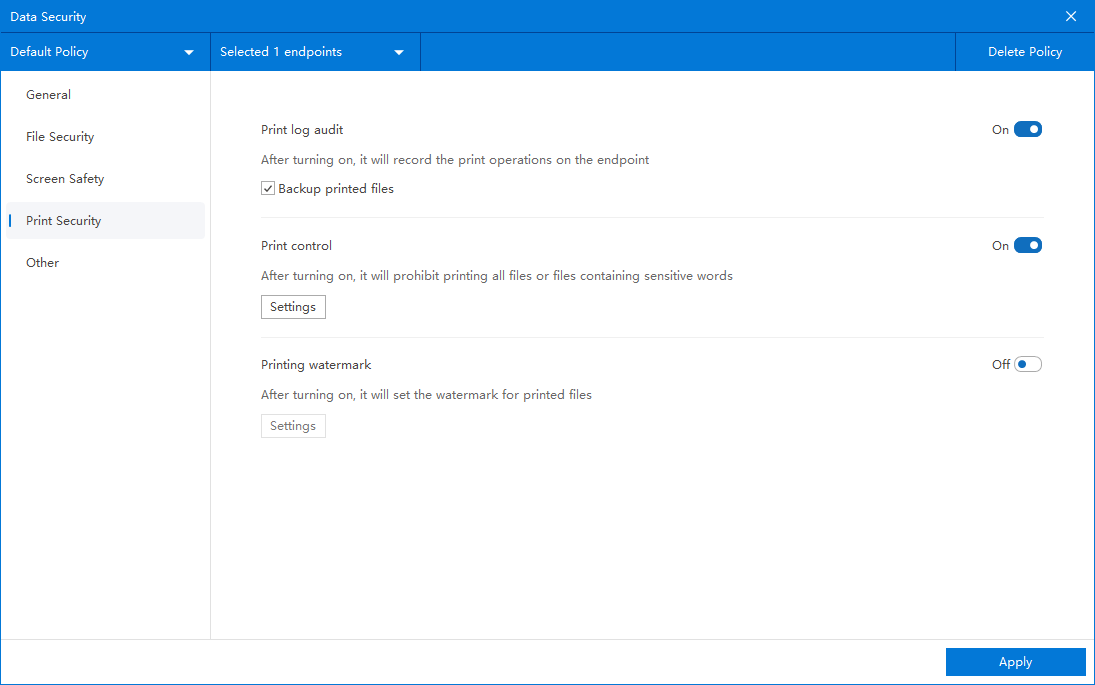
Parameter setting (select the control method as needed)
Click Parameter Settings to select the following strategy types:
- Disable printing of all files:
When enabled, the endpoint is prohibited from printing all files. - Disable printing of files containing sensitive words:
When the content of the document printed by the endpoint contains sensitive words, printing of the document is prohibited. - Allow endpoint to initiate printing request:
The endpoint computer can initiate a printing approval application, and printing is allowed only after the approval is passed.
Reference document: [How to Create an Approval Template](../../1. Installation, Deployment & Getting Started/Management Console/Libraries & Templates/17. How to Create an Approval Template.md)
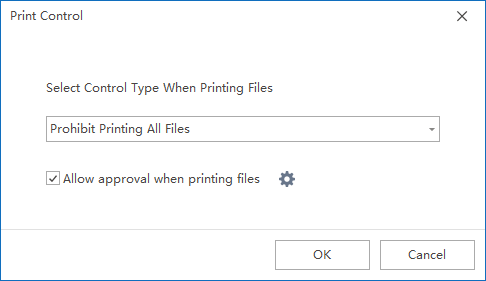
Client initiates print approval (endpoint side)
After the print approval policy is issued, the client icon will be displayed in the lower right corner of the endpoint computer. The steps are as follows:
1. Right-click the client icon → select Initiate Approval → Print Application
2. Fill in the application information:
- Title: required
- Description: optional
- Print Task: Optional; if you select “Unlimited”, you can print within the valid time after approval.
- Printer: Select the printer to use
- Time Settings: Set the time range allowed for printing
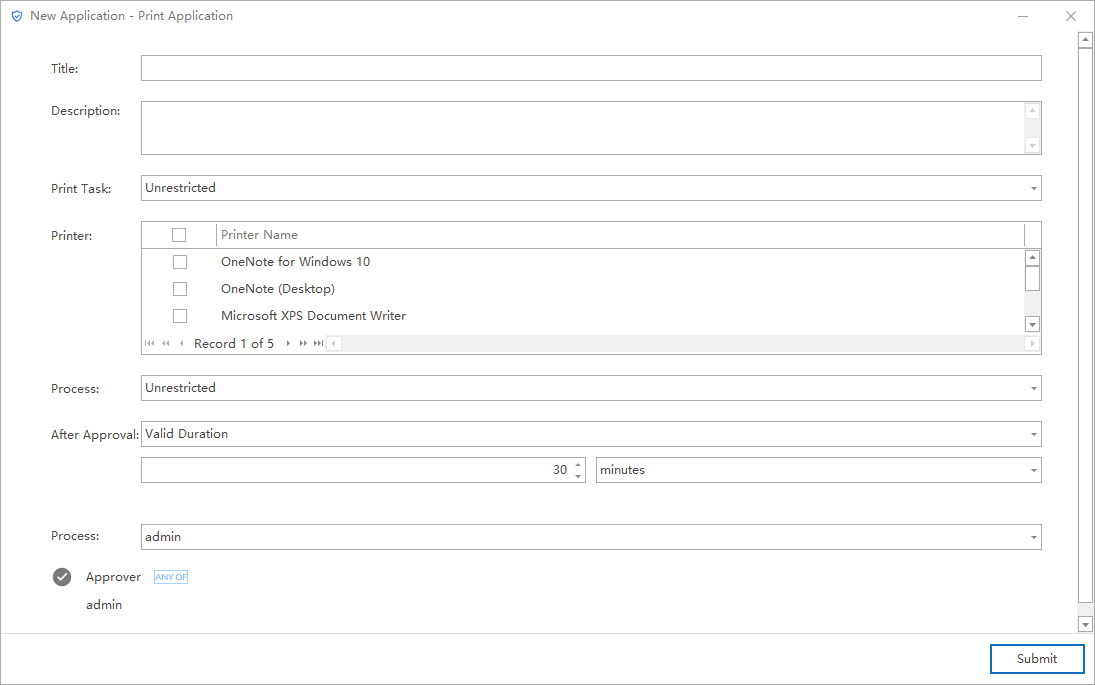
3. After completing the filling, click OK to complete the application submission.
Implementation suggestions and effect verification
After the policy is issued, it is recommended to verify three types of situations on the test endpoint: whether ordinary file printing is blocked, whether files containing sensitive content are controlled according to rules, and whether normal printing can be done within the valid time after approval. Through these three types of verification, you can quickly confirm whether print control, sensitive rules, and approval exceptions are linked as expected.
- If the enterprise wants to establish a printing order first, it is recommended to gradually proceed with the idea of ”default prohibition + approval and release”.
- If you only need to control specific documents, you can use Prohibit printing of files containing sensitive words first to avoid affecting ordinary printing scenarios.
- For approval printing scenarios, it is recommended to jointly determine the approval template and validity period with the business department to reduce management deviations caused by frequent applications or excessive releases.

