

Employees sending files out through chat tools, browser […]
Employees sending files out through chat tools, browsers, mailboxes, network disks, mobile media, etc. is the most common risk scenario in enterprise data security management and the one that most requires continuous traceability. By enabling Leak Tracking in File Security through Ping32, administrators can not only grasp “who sent what files at what time and through what channels”, but can also further combine screenshots, alerts, backups and sensitive content analysis when necessary to form a more complete audit link.
From the perspective of implementation strategy, it is recommended to stably enable Leak Tracking as a basic capability first, and then gradually add enhancements such as Leak Backup, Sensitive Content Analysis, and Browser-Based Leak Channel Analysis based on the security requirements of the enterprise. This can not only establish the outbound traceability capability as soon as possible, but also avoid overlaying too many strategies at once in the early stage and increasing debugging costs.
Enable “Leak Tracking” to monitor and audit outbound files
If the current main goal of the enterprise is to establish outbound traceability capabilities, it is recommended to complete the configuration in this section first. Once completed, administrators can view audit records of employee outbound files in Leak Tracking and decide whether to continue enabling backups, sensitive content identification, or more granular risk treatment based on the actual risk level.
1. Click Data Security → Policy on the Ping32 Management Console to enter the data security policy settings page.
2. In the data security policy settings page, click File Security and turn on Leak Tracking to monitor and audit files sent by employees.
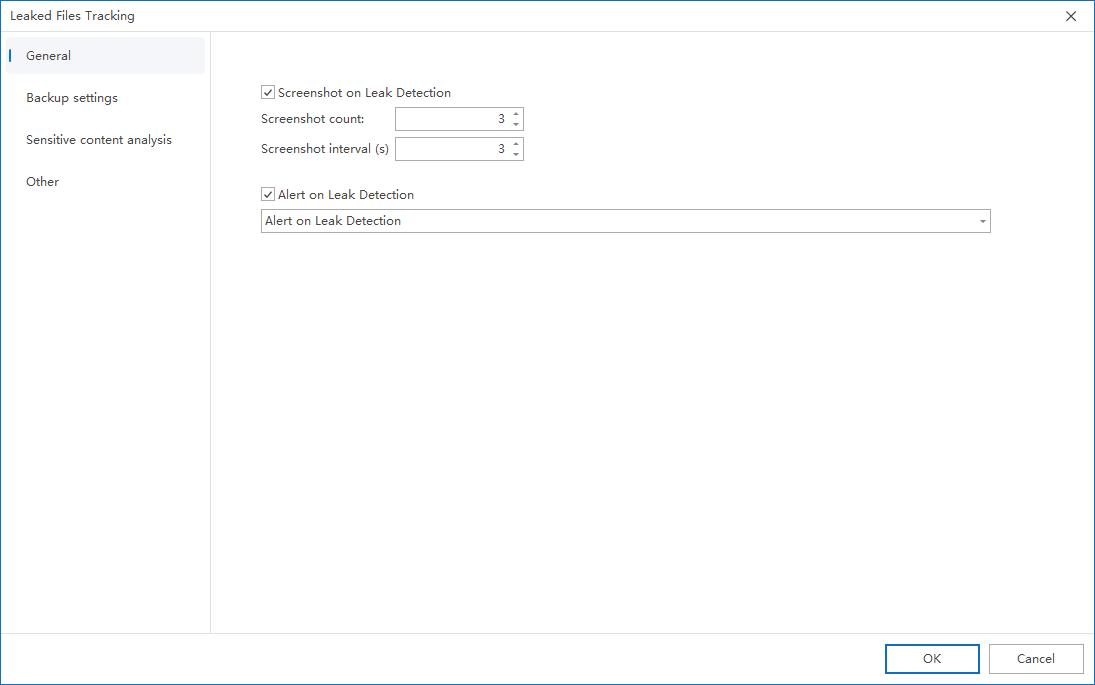
3. Click Parameter Settings → General Settings and configure the following options as needed:
- Check Take screenshots when leaks are discovered:
- Set the number of screenshots and the interval between screenshots
- Realize automatic screenshot auditing when employees send files out
- Check Alert when a leak is discovered:
- Pop-up alert to console administrator
- Can be configured to trigger when multiple files are sent out in a short period of time
4. After the policy setting is completed, confirm the policy application endpoint.
5. After confirming the policy application endpoint, click Apply to start monitoring and auditing files sent by employees.
6. After the policy is issued, click Data Security → Leak Tracking to view the relevant audit records of files sent by employees.
After completing the above configuration, it is recommended to simulate an outgoing action on the test endpoint, such as sending a test file through WeChat, browser or email, and then return to Data Security → Leak Tracking to check whether the corresponding record has been generated. When verifying, you can focus on the endpoint name, outgoing route, file name, timestamp, and whether there are screenshots or alarm information to confirm that the audit link is complete and available.
Back up leaked files (optional)
If the enterprise not only wants to know that “outbound files have occurred”, but also wants to be able to directly retrieve the original outbound files for verification afterwards, it is recommended to further configure leak backup. This capability is particularly suitable for high-value positions, key project groups, or compliance scenarios where original evidence needs to be retained.
1. In the Ping32 Management Console, click Data Security → Policy → Select the corresponding policy → File Security → Leak Tracking → Parameter Settings
2. Click Leak Backup → Add to configure the backup of leaked files when a leak is triggered:
3. Configure backup settings in the pop-up window, with descriptions of configuration items.
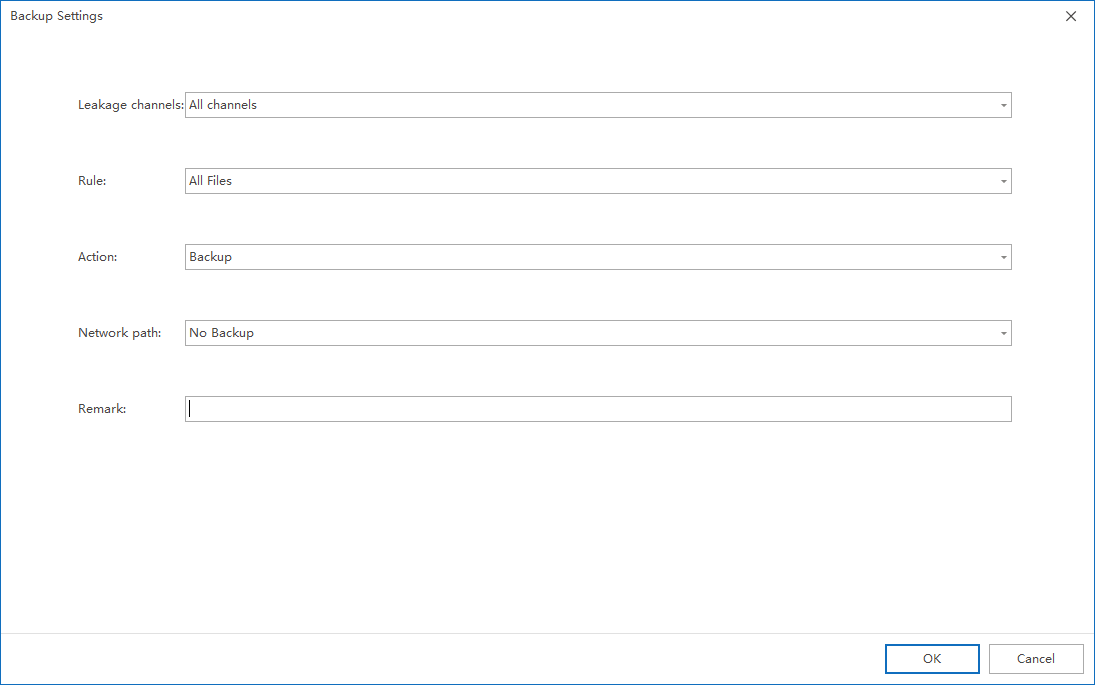
Outsourcing channels
- The default is All ways, that is, files sent out through any means will be backed up.
- Can be configured to specify leakage channels and support setting custom programs
rule
- Default is All files
- Can be configured as compound rules, supporting:
- Specify file type
- Specify file size range
operate
- The default operation is Backup. If you want to set the specified program not to perform file backup, select No backup.
- Network path
- The default operation is No backup. If you want to set up backup of network drive files, select Backup
- Remark
- Fill in the remark information of this entry (to distinguish it from other entries)
When planning Leakage Backup, it is recommended not to simply back up all outbound behaviors indiscriminately, but rather to make refined configurations based on outbound channels, rules and key positions. This can not only reduce the storage pressure caused by invalid backups, but also help administrators quickly focus on high-risk files that really need to be retained.
Analyze whether the document contains sensitive content (optional)
For companies with a large number of outbound documents and high costs of manual screening one by one, Sensitive Content Analysis can further improve audit efficiency. Administrators can use data classification to identify whether files contain specific sensitive words, sensitive fields, or business classification content, thereby upgrading outbound auditing from “seeing outbound content” to “identifying outbound content risks.”
1. In the Ping32 Management Console, click Data Security → Policy → Select the corresponding policy → File Security → Leak Tracking → Parameter Settings
2. Click Sensitive Content Analysis and check Sensitive Content to enable sensitive content analysis. Support
- Intelligent analysis
This mode will analyze based on conditions such as system resource usage and whether it is idle. - Real-time analysis
In this mode, the file content will be analyzed in real time.
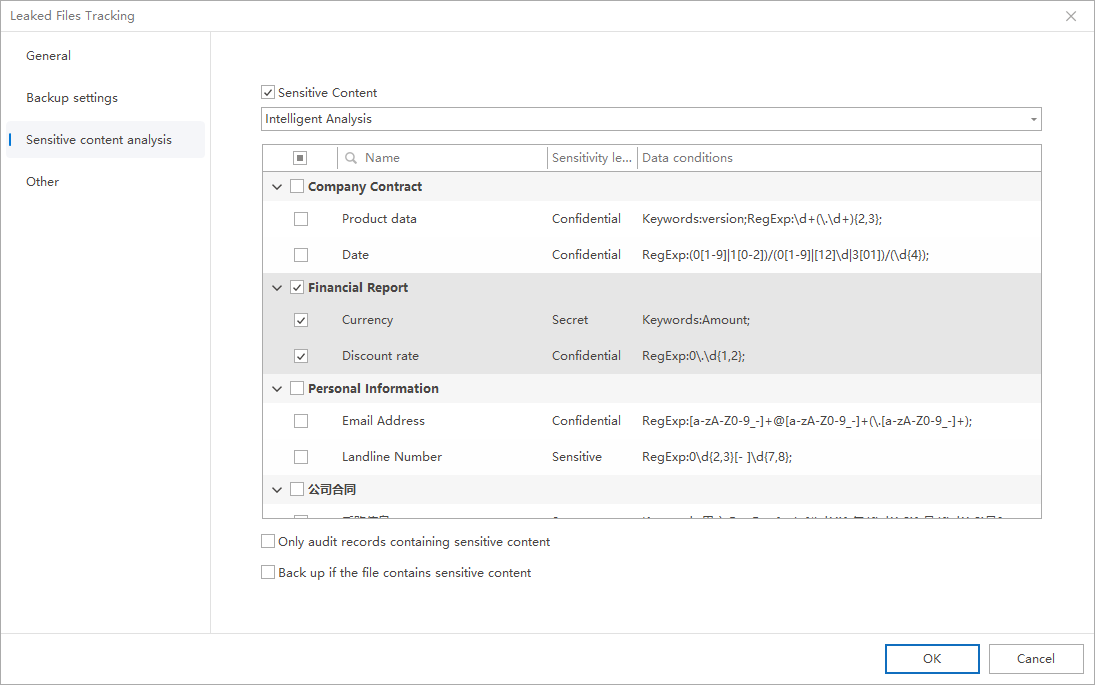
3. Select the sensitive words to be analyzed from the data categories below
Optional configuration:
- Only audit records containing sensitive content
- Instantly back up files containing sensitive content
If an enterprise wants to reduce the audit interference caused by ordinary files, it can first enable “Audit only records containing sensitive content”; if it also wants to retain the original evidence when sensitive content is hit, it can also check “Immediately back up files containing sensitive content”. This type of combination configuration is more suitable for high-risk data governance scenarios.
Enable browser leakage channel analysis (optional)
Ping32 leak tracking supports domain name analysis for browser leak behaviors, allowing for more refined processing of leak behaviors.
Enable “AI Pro Service”
Click System Settings → Advanced Settings in the Ping32 Management Console.Start AI Pro service.Click Apply
Enable the “intelligent analysis of leakage applications” strategy
1. Enable the Leak Tracking policy
2. Click Other on the leak tracking policy setting interface
3. Open the Smart Leak Analysis Application
4. Click OK → Click Apply
Check the effect
After the policy is issued, click Data Security → Leakage Tracking to view the audit records.Example: When the endpoint logs in to QQ mailbox through a browser to send files, the leakage channel will be displayed as QQ mailbox instead of only the browser (such as Edge).In the detailed information of the leakage channel, you can view:
- Leak software: such as Edge browser
- Leakage method: such as QQ mailbox
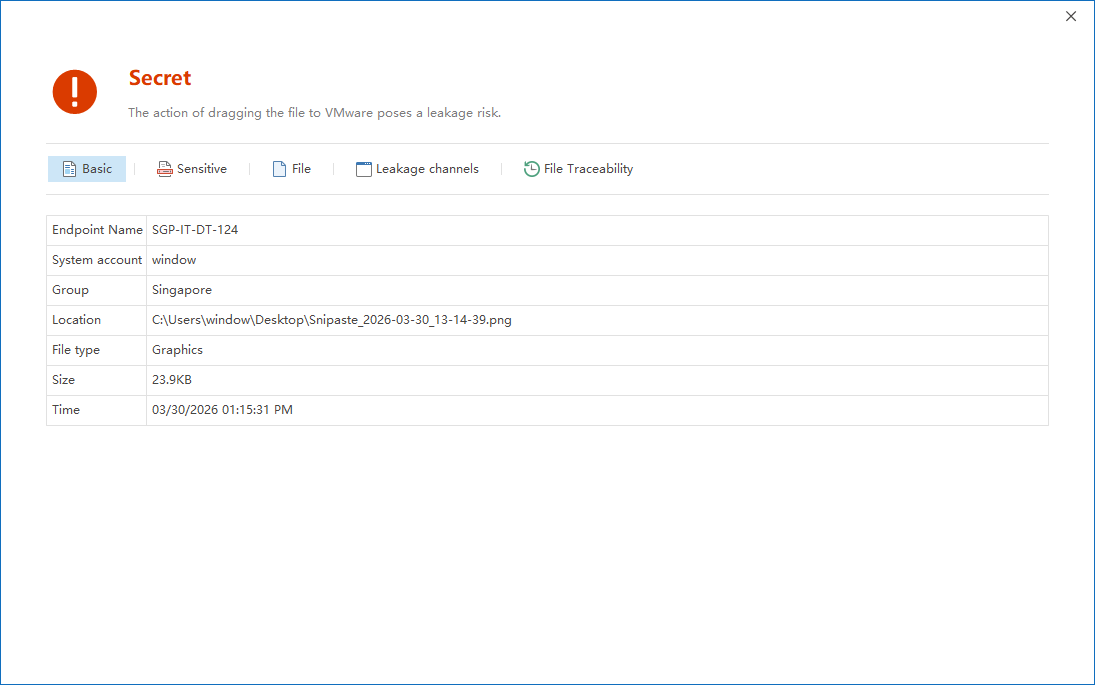
Through the above method, the leakage path can be more refined and help managers accurately understand how users leak secrets.
Implementation suggestions and common ideas
- If an enterprise has just started to build an outsourced audit system, it is recommended to enable Leak Tracking first, and then gradually enable Leak Backup and Sensitive Content Analysis after confirming that the audit records are stably generated.
- For high-risk positions, it is recommended to enable Screenshot when a leak is discovered and Alarm when a leak is discovered at the same time to improve the efficiency of incident discovery and the completeness of the review.
- For browser outgoing scenarios, it is recommended to combine AI Pro Service and Intelligent Analysis Leakage Application to avoid recording only staying at the browser process level without specific outgoing method information.
- Before the outbound audit strategy is officially distributed on a large scale, it is recommended to conduct verification on different outbound channels to ensure that the audit, backup, alarm and sensitive content identification results are consistent with expectations.

